Will WebP always be smaller?
No. Image content, dimensions, and both encoders’ settings determine the actual result.
Make a WebP delivery copy of a JPG photo. Inspect the result and compare actual bytes rather than assuming a fixed saving.
No signup · File contents stay on this deviceJPG, PNG, WebP, AVIF or HEIC images · files stay on your device
or paste an image with Ctrl / Cmd + VUp to 30 files · 20 MiB per file · 80 MiB total
Processing happens in your browser. File contents are not uploaded. Close the tab to release active files; temporary handoffs use local browser storage. · Privacy details
Measured with the listed sample and settings; these may differ from this page’s starting preset. Timings are individual processing-function runs in the stated environment and exclude page loading. Library caches may be warm. These small-file checks do not establish performance or compatibility for every document.
| Sample | Settings | Observed output | Environment |
|---|---|---|---|
| sample-detail.jpg (1800 × 1200; 446,566 bytes) ↗ | WEBP; quality 88%; background transparent | approximately 235.3 KB; 1800 × 1200 · 0.15 sec | Chrome · Apple M2 / macOS · 15 Oct 2026 · local test |
Using this tool
Before you start
Create delivery copies from the best available original. Repeated JPG-to-WebP-to-JPG conversions can accumulate visible loss.
Inspect skin texture, gradients, and high-contrast edges. Choose the smallest result that still serves the image’s purpose, not simply the smallest file.
A JPEG photo can be converted to WebP for a website that accepts the format. This page starts with WebP output at 88% quality. Because the JPEG has already been compressed, a second encoding step can change texture and edges; the new extension alone does not establish a quality or performance improvement. Compare the actual output bytes with the original and inspect the picture at the size visitors will see.
For example, a 4000-pixel source displayed in a 1000-pixel content column may benefit more from resizing before compression than from a format switch alone. Keep a high-quality source, resize once to the required dimensions, then export the chosen delivery format. A portrait with smooth gradients and a photograph of dense foliage can produce very different sizes with identical settings. Do not assume that one quality value gives a fixed reduction across a batch. Test representative photographs, and retain JPEG when the receiving application or editorial workflow requires it.
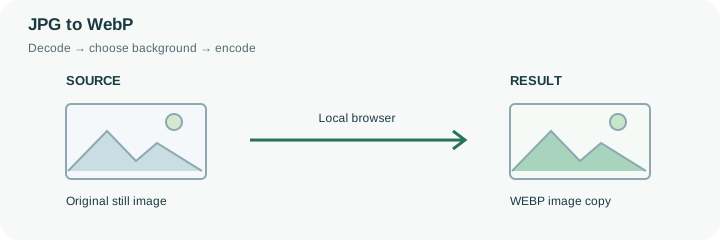
The JPEG is decoded to pixels and then encoded as WebP; the engine does not transfer its original compressed image blocks into a new wrapper. Consequently, the 88% starting setting cannot mean 88% of the original JPEG quality or size. Existing compression artifacts can remain and another generation of encoding may add new ones.
Check a representative textured area and a smooth gradient in the downloaded output. Compare source and result bytes at the same dimensions before deciding whether the format change helps. If the image is unnecessarily large in pixels, resize the best source once before making a delivery copy. The original JPEG remains useful for systems that do not accept WebP, and conversion does not automatically alter those systems’ requirements.
Common questions
No. Image content, dimensions, and both encoders’ settings determine the actual result.
Use dimensions suitable for the destination. Serving a very large image at a small display size can waste bytes regardless of its format.
Check support in each receiving application or upload form. The best web format is not necessarily the best email attachment or submission format.
Its contents are decoded and encoded in this browser. The website and any required decoder files load normally, but your chosen image is not uploaded to a conversion API. Initial preparation can require an internet connection.
Yes. After conversion, use the next-step actions to pass successful result files to another compatible tool through temporary local browser storage. Download a copy if you need a lasting artifact.