Is changing the filename enough?
No. Renaming .webp to .jpg does not change the encoded image. Conversion creates a file in the selected format.
Change an image format, choose the output quality, and download a new copy. Keep the source and inspect transparency before sharing.
No signup · File contents stay on this deviceJPG, PNG, WebP, AVIF or HEIC images · files stay on your device
or paste an image with Ctrl / Cmd + VUp to 30 files · 20 MiB per file · 80 MiB total
Processing happens in your browser. File contents are not uploaded. Close the tab to release active files; temporary handoffs use local browser storage. · Privacy details
Measured with the listed sample and settings; these may differ from this page’s starting preset. Timings are individual processing-function runs in the stated environment and exclude page loading. Library caches may be warm. These small-file checks do not establish performance or compatibility for every document.
| Sample | Settings | Observed output | Environment |
|---|---|---|---|
| sample-detail.jpg (1800 × 1200; 446,566 bytes); sample-transparent.png (1600 × 1000; 43,511 bytes) ↗ | JPG; quality 88%; background #ffffff | approximately 323.7 KB; 1800 × 1200 · 0.04 sec | approximately 94.3 KB; 1600 × 1000 · 0.02 sec | Chrome · Apple M2 / macOS · 15 Oct 2026 · local test |
Using this tool
Before you start
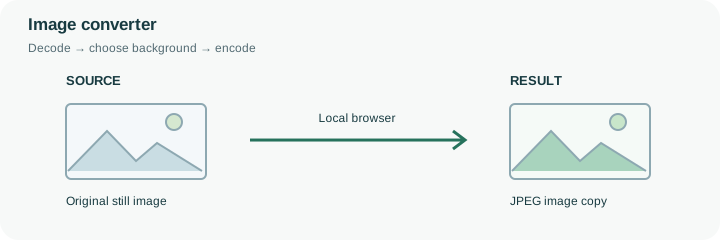
Check the receiving site or application before choosing a format. A widely accepted JPG is useful for photos, while transparent logos and interface graphics often need PNG. A smaller file is useful only if the recipient can open it.
Reopen the exported copy and check its dimensions, orientation, fine text, and transparent edges. Keep the source alongside it until the replacement works in the destination.
A product photograph intended for an email attachment, a transparent logo for a slide and a website illustration have different requirements. Start by checking which formats the recipient accepts. JPG is an opaque, lossy photo format. PNG retains the decoded pixels without a JPEG quality trade-off and can carry transparency. WebP is useful when the destination supports it, but a format change alone is not a promise of smaller bytes.
For example, keep a transparent logo in PNG when it must sit on several backgrounds. For a JPG-only form, choose the background before exporting because that decision becomes part of the image. Review a single converted file before processing the rest of a batch. The queue uses one output setting for every file, so mixing photographs and logos may call for separate runs. After conversion, pass the result to the resizer or compressor if the destination also imposes dimensions or a byte limit; avoid repeated encoding merely to change a filename.
A file extension is a label, not a conversion instruction. The engine inspects supported source headers before decoding and uses the selected output format to create a new image. A renamed .jpg file containing WebP data does not become JPEG merely because its name changed. Unsupported or animated inputs are rejected rather than silently treated as a successful still conversion.
Use the output row to confirm the detected input format, delivered format and dimensions. The PNG, JPEG and WebP encoders can produce different bytes in different browsers, even for the same starting quality value. Keep a delivery copy only after checking that its real format and appearance suit the receiving system. No format preset promises a fixed percentage saving.
Common questions
No. Renaming .webp to .jpg does not change the encoded image. Conversion creates a file in the selected format.
PNG supports transparent pixels. WebP can also retain transparency; JPG needs an opaque background. Inspect edges against the intended background.
No. A new format cannot recover detail missing from the source. Keep the original dimensions unless a smaller image is required.
Its contents are decoded and encoded in this browser. The website and any required decoder files load normally, but your chosen image is not uploaded to a conversion API. Initial preparation can require an internet connection.
Yes. After conversion, use the next-step actions to pass successful result files to another compatible tool through temporary local browser storage. Download a copy if you need a lasting artifact.