Will my original files be overwritten?
The tool creates a new result for download. Keep the separate source files until you have verified the merged document.
Join PDF pages into a new document and review the sequence. Preserve your source files, especially forms and signed originals.
No signup · File contents stay on this devicePDF documents · files stay on your device
Up to 20 files · 25 MiB per file · 80 MiB total
Processing happens in your browser. File contents are not uploaded. Close the tab to release active files; temporary handoffs use local browser storage. · Privacy details
Measured with the listed sample and settings; these may differ from this page’s starting preset. Timings are individual processing-function runs in the stated environment and exclude page loading. Library caches may be warm. These small-file checks do not establish performance or compatibility for every document.
| Sample | Settings | Observed output | Environment |
|---|---|---|---|
| sample-document.pdf (3 pages; 2,246 bytes); sample-generated.pdf (2 pages; 238,413 bytes) ↗ | All 5 source pages in original order; no added bookmarks | approximately 234.4 KB; 0.02 sec; 5 PDF pages | Chrome · Apple M2 / macOS · 15 Oct 2026 · local test |
Using this tool
Before you start
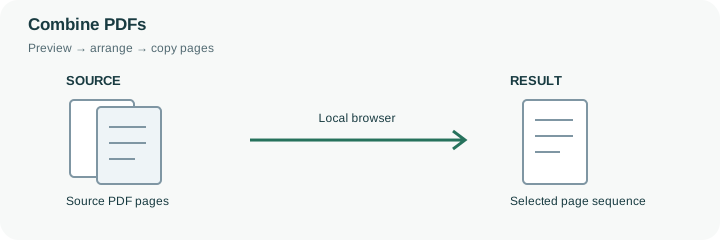
Most ordering mistakes appear where one source document ends and the next begins. Check these joins, page orientation, and any page-number labels printed in the source. Add new file-name bookmarks if a simple entry point for each source file is useful; this does not restore its original bookmark tree.
Use this when the purpose is to assemble pages. It does not edit the text inside those pages or provide a document-signing workflow.
A combined PDF is often a handover packet: a cover page, a report and several supporting records. File order gives a useful first sequence, but it is rarely enough to verify only the first thumbnail. Check the last page of one source and the first page of the next, where duplicated covers, missing appendices or unexpected blank pages are easiest to miss. Use the page preview to omit or move pages before saving.
The merger copies supported PDF pages into a new document instead of converting every page into a picture. That preserves ordinary page content more directly than an image round trip, but it does not preserve every document-level feature. Original outlines, attachments, form behavior and signing structures are not a reliable part of this workflow. Encrypted, signed or form-bearing documents are rejected to avoid silently producing a misleading replacement. Optional new bookmarks identify source filenames, not original chapter headings. Reopen the final file and check page count, order and bookmarks before using it as the handover copy.
Without a custom page selection, the merger takes each source’s pages in file order. The preview lets you build an explicit page sequence instead. Omitting a thumbnail changes the new document only; the PDF on your device is not overwritten. Check that every required source contributes its intended pages before creating the packet.
The output copies ordinary page content using pdf-lib rather than rendering it into photographs. That distinction does not promise complete preservation of links, attachments or document-level navigation. Encrypted, signed and interactive-form inputs are blocked by this workflow. Retain those originals for their original purpose. Read the output page count and reopen the joins between sources, where order mistakes are easiest to miss.
Common questions
The tool creates a new result for download. Keep the separate source files until you have verified the merged document.
No. This merger rejects detected signature fields or certification information because it cannot preserve signature validity. Keep the signed original; use an unsigned copy only when page assembly is appropriate.
Ordinary source text is copied as PDF page content without rasterizing. Interactive forms are rejected, and document structure such as bookmarks and accessibility tags is not preserved. Check search, reading order and links in the result.
No. Page copying and new-PDF creation run locally after the browser loads the required library. The files are not submitted to a server-side merge API.
Yes. Reopen it and check page count, sequence, document boundaries and any newly created bookmarks. A completed merge does not establish that the source packet was complete or correctly ordered.