Why is there space around my resized image?
Fit inside preserves the full picture within the chosen canvas. Different proportions create padding; a small source also stays small when enlargement prevention is on.
Set pixel dimensions and choose whether to fit, crop, or stretch the picture. Preview the result before replacing an original.
No signup · File contents stay on this deviceJPG, PNG, WebP, AVIF or HEIC images · files stay on your device
or paste an image with Ctrl / Cmd + VUp to 30 files · 20 MiB per file · 80 MiB total
Processing happens in your browser. File contents are not uploaded. Close the tab to release active files; temporary handoffs use local browser storage. · Privacy details
Measured with the listed sample and settings; these may differ from this page’s starting preset. Timings are individual processing-function runs in the stated environment and exclude page loading. Library caches may be warm. These small-file checks do not establish performance or compatibility for every document.
| Sample | Settings | Observed output | Environment |
|---|---|---|---|
| sample-detail.jpg (1800 × 1200; 446,566 bytes); sample-transparent.png (1600 × 1000; 43,511 bytes) ↗ | 1200 × 1200 px; contain; JPG; no enlargement | approximately 129.4 KB; 1200 × 1200 · 0.04 sec | approximately 67.2 KB; 1200 × 1200 · 0.02 sec | Chrome · Apple M2 / macOS · 15 Oct 2026 · local test |
Using this tool
Before you start
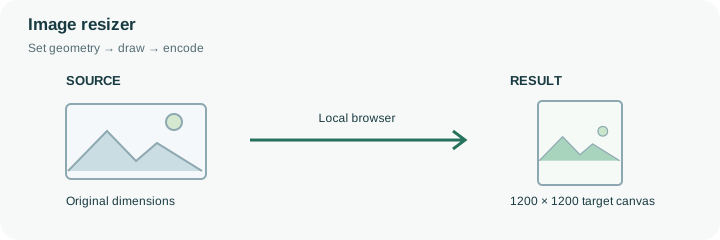
A 1600 × 900 picture and a square target have different proportions. Fit inside keeps the full picture and adds padding; Fill frame crops to fill; Stretch changes the proportions. Choose according to what must remain visible.
Use the largest appropriate original for future versions. Repeatedly resizing a previously reduced copy cannot bring back detail lost in the first reduction.
Suppose a 1600 × 900 landscape photograph must fit a 1200 × 1200 product tile. Fit inside places the whole landscape image inside the square and leaves space above and below. Fill frame instead enlarges or reduces it to cover the square, cutting off content at the sides. Stretch forces both axes to the target independently, making round objects appear oval. These operations share a target rectangle but produce different pictures.
Start with Fit inside for documents or products whose edges must remain visible. Choose a background that works with the destination, or use blurred padding for decorative presentations. Blurred padding repeats enlarged pixels behind the foreground; it does not invent a wider original. When no-upscale is enabled, a small source keeps its original detail. The surrounding canvas can still be larger in Fit inside mode. For a batch where every image should be half its own size rather than share one canvas, choose the percentage page. Check both dimensions and composition in the result before sending it onward for compression.
The width and height controls describe a canvas, while Fit inside, Fill frame and Stretch describe how pixels occupy it. For a 1600 × 900 source inside the default 1200 × 1200 canvas, Fit inside scales the foreground to 1200 × 675 and centers it in the remaining space. That geometry is an illustration of the fit rule, not a timed benchmark.
The exported image is newly encoded, so its byte size depends on the selected format and image content as well as its dimensions. A fixed-size canvas cannot by itself meet an email attachment cap. Check the result row’s width and height first, then open the file to confirm composition, background and small text. Keep the master when another crop may be needed later.
Common questions
Fit inside preserves the full picture within the chosen canvas. Different proportions create padding; a small source also stays small when enlargement prevention is on.
Enter equal width and height and choose Fill frame for a square crop. Check that important content remains visible. A source too small to fill it may produce a smaller output when enlargement is prevented.
No. Pixel dimensions describe digital resolution. Physical print size also depends on the printer or document resolution setting.
No. The browser calculates the geometry and creates the output locally. The page itself still loads from the website, and source or output size can exceed the browser’s practical memory limits.
Yes. A next-step action can transfer the successful result through temporary local browser storage. Verify the final dimensions afterward because target-size compression can reduce them further.