Is this a video converter?
No. It creates a still image using a 1920 × 1080 target canvas. Frame rate, duration, audio and video codecs are outside this tool.
Create a 16:9 image canvas for a presentation or screen, using padding to keep the full picture or cropping when the frame must be filled.
No signup · File contents stay on this deviceJPG, PNG, WebP, AVIF or HEIC images · files stay on your device
or paste an image with Ctrl / Cmd + VUp to 30 files · 20 MiB per file · 80 MiB total
Processing happens in your browser. File contents are not uploaded. Close the tab to release active files; temporary handoffs use local browser storage. · Privacy details
Measured with the listed sample and settings; these may differ from this page’s starting preset. Timings are individual processing-function runs in the stated environment and exclude page loading. Library caches may be warm. These small-file checks do not establish performance or compatibility for every document.
| Sample | Settings | Observed output | Environment |
|---|---|---|---|
| sample-detail.jpg (1800 × 1200; 446,566 bytes); sample-transparent.png (1600 × 1000; 43,511 bytes) ↗ | 1920 × 1080 px; contain; JPG; no enlargement | approximately 232.4 KB; 1920 × 1080 · 0.04 sec | approximately 98.1 KB; 1920 × 1080 · 0.03 sec | Chrome · Apple M2 / macOS · 15 Oct 2026 · local test |
Using this tool
Before you start
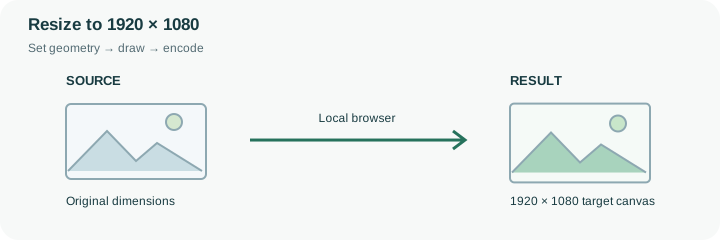
A 1920 × 1080 image is a landscape 16:9 rectangle commonly useful as a screen illustration or presentation background. This tool creates a still image at that preset; it does not encode a video, set a frame rate or guarantee a particular platform’s upload rules. Start with an image large enough to supply the detail the display requires.
A portrait photograph cannot fill a wide canvas without either cropping a substantial area or leaving padding. The default Fit inside preserves the entire picture and uses white for the surrounding frame. Fill frame can work for decorative backgrounds, but check faces, text and other content near the crop boundaries. No-upscale may prevent a small source from filling the requested frame, so read the actual result dimensions. For slides, preview the output at the size it will be shown: small text baked into a screenshot can remain unreadable even when the outer file is exactly 1920 × 1080. If the image must also meet an attachment cap, continue to compression and confirm that the later operation has not reduced its dimensions below the requirement.
For a 1600 × 900 source with enlargement prevention enabled, Fit inside keeps those foreground dimensions and centers the picture on the 1920 × 1080 canvas. Turning enlargement on allows the foreground to fill the frame, but interpolation does not restore new detail. A portrait source leaves substantially more side space in this wide rectangle.
Use the final file in the intended slide or screen layout before accepting it. Text that occupied a small part of the original can remain too small even when the outside dimensions are correct. This preset does not set video frame rate, provide safe-area guides or certify a platform thumbnail requirement. If you later compress the result toward a byte limit, recheck the final dimensions because that operation may reduce them.
Common questions
No. It creates a still image using a 1920 × 1080 target canvas. Frame rate, duration, audio and video codecs are outside this tool.
Fit inside leaves padding beside the portrait. Fill frame crops content to cover the rectangle. Review the composition before choosing.
No. A platform may have its own format, byte, composition or content requirements. Check those separately from the target dimensions.
No. The browser calculates the geometry and creates the output locally. The page itself still loads from the website, and source or output size can exceed the browser’s practical memory limits.
Yes. A next-step action can transfer the successful result through temporary local browser storage. Verify the final dimensions afterward because target-size compression can reduce them further.