Can I put several JPG files into one PDF?
Yes. The selected images are placed into a new PDF in the order and layout you choose.
Arrange JPG photos into a PDF, choose a page size and images per page, and review the complete document before sending.
No signup · File contents stay on this deviceStill JPG, PNG or WebP images · files stay on your device
or paste an image with Ctrl / Cmd + VUp to 20 files · 25 MiB per file · 80 MiB total
Processing happens in your browser. File contents are not uploaded. Close the tab to release active files; temporary handoffs use local browser storage. · Privacy details
Measured with the listed sample and settings; these may differ from this page’s starting preset. Timings are individual processing-function runs in the stated environment and exclude page loading. Library caches may be warm. These small-file checks do not establish performance or compatibility for every document.
| Sample | Settings | Observed output | Environment |
|---|---|---|---|
| sample-detail.jpg (1800 × 1200; 446,566 bytes); sample-transparent.png (1600 × 1000; 43,511 bytes) ↗ | A4; 1 image(s)/page; 18 pt margins; 5 MB target | approximately 419.2 KB; 0.08 sec; 2 PDF pages | Chrome · Apple M2 / macOS · 15 Oct 2026 · local test |
Using this tool
Before you start
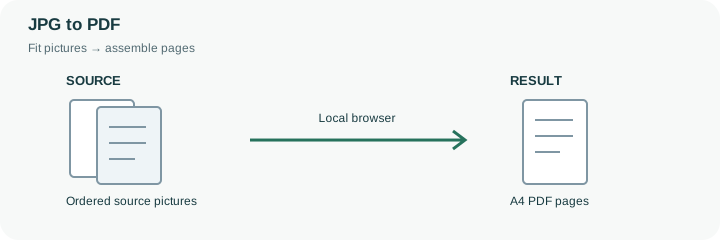
Use this for a small set of receipt photos, reference images, or page photographs that need to travel as one document. Readability still depends on the input images and the space each receives on the page.
A contact sheet is useful for browsing, but several images on one page can make receipt text too small. Use one image per page when the reader needs to examine detail. Match image maps the source pixels at 96 pixels per inch and adds 18-point margins; it does not retain the original file bytes or print-resolution metadata.
A folder of photographed receipts can be easier to handle as one ordered PDF, but putting four receipts on each sheet may make totals too small. Use one image per page for readable records and a contact-sheet layout for browsing photographs. Select A4 or Letter according to the receiving workflow rather than the country where the photo was taken. The image is fitted within the page margins without cropping its edges.
Before creating the PDF, arrange front and back images together and remove duplicate photographs from the selection. After creation, reopen the downloaded document and check the first page, every document boundary and the final page. Images are raster pictures inside the PDF; adding a PDF wrapper does not make their letters searchable or turn a signature into a verified digital signature. If a byte limit applies, inspect both the reported final size and the resulting legibility. A target helps guide re-encoding, but the tool reports the actual size even when the target cannot be reached.
The page layout determines how much physical space each photograph receives. The engine fits pictures without cropping, then embeds JPEG copies; changing the PDF’s outer page size does not add detail that the photographs never contained. Source images are limited to a longest edge of 4096 pixels during assembly, so this is not an archival wrapper around unchanged JPEG bytes.
A positive document-size target can trigger further re-encoding. The displayed final PDF size must still be checked because this workflow reports an oversized result rather than certifying submission acceptance. Review page count, margins and the smallest readable text after creation. For a strict form limit, compare the PDF’s actual bytes with the recipient’s rule before sending the document.
Common questions
Yes. The selected images are placed into a new PDF in the order and layout you choose.
No OCR is performed here. The words remain part of the picture.
Use the paper size required by the recipient. A4 and Letter have different proportions, so inspect the margins after choosing.
No. The local browser loads the PDF library and assembles the selected image files on this device. The website does not receive their contents for conversion.
Keep them when future edits, original quality or metadata matter. The PDF is a new image document with its own encoding and layout; it is not an unchanged container for the original file bytes.