Does a square image require stretching?
No. Fit inside adds padding and Fill frame crops. Stretch is a separate option and usually unsuitable when faces or products should retain their proportions.
Make a square image without stretching the source. Use white or blurred padding, or deliberately crop to fill the 1080-pixel frame.
No signup · File contents stay on this deviceJPG, PNG, WebP, AVIF or HEIC images · files stay on your device
or paste an image with Ctrl / Cmd + VUp to 30 files · 20 MiB per file · 80 MiB total
Processing happens in your browser. File contents are not uploaded. Close the tab to release active files; temporary handoffs use local browser storage. · Privacy details
Measured with the listed sample and settings; these may differ from this page’s starting preset. Timings are individual processing-function runs in the stated environment and exclude page loading. Library caches may be warm. These small-file checks do not establish performance or compatibility for every document.
| Sample | Settings | Observed output | Environment |
|---|---|---|---|
| sample-detail.jpg (1800 × 1200; 446,566 bytes); sample-transparent.png (1600 × 1000; 43,511 bytes) ↗ | 1080 × 1080 px; contain; JPG; no enlargement | approximately 115.0 KB; 1080 × 1080 · 0.03 sec | approximately 57.1 KB; 1080 × 1080 · 0.02 sec | Chrome · Apple M2 / macOS · 15 Oct 2026 · local test |
Using this tool
Before you start
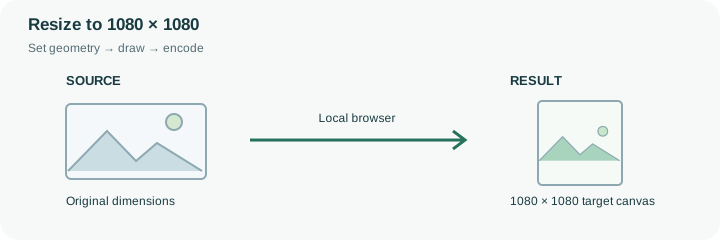
The 1080 × 1080 preset creates a square outer canvas. Fit inside is selected initially so a rectangular photograph remains complete, with padding where its ratio does not match the square. For a product record, this often matters more than filling every pixel with the foreground object. White padding suits many simple layouts, but you can choose another background or a blurred version of the image where a decorative result is appropriate.
Consider a 1600 × 900 landscape source. Containing it in the square retains its width and adds space above and below; covering the square instead removes part of the left and right edges. Neither choice is universally correct. Inspect the area around the subject and any label close to an edge. A no-upscale setting can leave a small source centered with extra space instead of making it sharper. This is a dimension preset, not an endorsement or guarantee of acceptance by a particular social platform. Check current destination requirements, then keep the square result for that use while retaining the original composition for future layouts.
Containing a 1600 × 900 picture in a 1080 × 1080 canvas produces a 1080 × 607.5 foreground drawing area before rasterization, with centered padding above and below. Filling the square instead changes what remains visible at the left and right edges. The example describes geometry rather than an actual file-size or performance measurement.
Check which operation the destination permits. A product record might require its entire outline, while a decorative tile may permit cropping. Neither option removes a border already baked into the source or automatically centers a subject inside the picture. For a small original, no-upscale leaves additional padding instead of inventing sharpness. Inspect the finished square at its intended display size and retain the uncropped master for another layout.
Common questions
No. Fit inside adds padding and Fill frame crops. Stretch is a separate option and usually unsuitable when faces or products should retain their proportions.
Yes, blurred padding can use an enlarged decorative copy behind the foreground. It does not create new detail or extend the actual photographed scene.
No. The preset only sets image geometry. Official photo requirements can include subject size, background, lighting and other rules this tool does not validate.
No. The browser calculates the geometry and creates the output locally. The page itself still loads from the website, and source or output size can exceed the browser’s practical memory limits.
Yes. A next-step action can transfer the successful result through temporary local browser storage. Verify the final dimensions afterward because target-size compression can reduce them further.