Will entering dimensions always crop the picture?
No. Fit inside keeps the entire picture with padding. Fill frame crops as needed to cover the rectangle, while Stretch distorts the proportions.
Enter a pixel width and height, keep the complete picture with padding or choose a crop, and inspect the actual exported dimensions.
No signup · File contents stay on this deviceJPG, PNG, WebP, AVIF or HEIC images · files stay on your device
or paste an image with Ctrl / Cmd + VUp to 30 files · 20 MiB per file · 80 MiB total
Processing happens in your browser. File contents are not uploaded. Close the tab to release active files; temporary handoffs use local browser storage. · Privacy details
Measured with the listed sample and settings; these may differ from this page’s starting preset. Timings are individual processing-function runs in the stated environment and exclude page loading. Library caches may be warm. These small-file checks do not establish performance or compatibility for every document.
| Sample | Settings | Observed output | Environment |
|---|---|---|---|
| sample-detail.jpg (1800 × 1200; 446,566 bytes); sample-transparent.png (1600 × 1000; 43,511 bytes) ↗ | 1200 × 800 px; contain; JPG; no enlargement | approximately 123.1 KB; 1200 × 800 · 0.05 sec | approximately 63.1 KB; 1200 × 800 · 0.03 sec | Chrome · Apple M2 / macOS · 15 Oct 2026 · local test |
Using this tool
Before you start
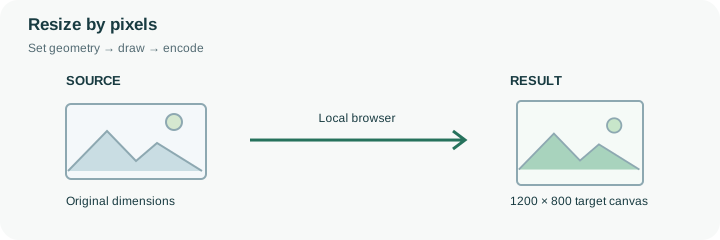
A destination asking for 1200 × 800 pixels is describing a rectangle with a 3:2 ratio. A 1600 × 900 source has a different ratio. Fit inside can produce the requested canvas while leaving padding, Fill frame may crop the top and bottom, and Stretch changes the relative scale of the two axes. Decide which of those changes the task permits before treating the output dimensions as correct.
This preset opens in pixel mode with 1200 × 800 entered. It is useful for forms, page illustrations and fixed-size placeholders with known dimensions. Enter both numbers exactly and inspect the exported result. With no-upscale enabled, the tool avoids enlarging the foreground image; depending on the fit choice, a small source can remain small inside padding or lead to a smaller output frame. Pixel dimensions do not specify print centimeters or ensure a high-quality enlargement. If the requirement is a proportional reduction such as half size, use the percentage tool so each input keeps its own ratio. Keep one original master for any later, larger version.
A 1200 × 800 image is not interchangeable with an 800 × 1200 image. The first number controls the horizontal edge and the second the vertical edge. With Fit inside, the engine centers the complete source inside that ordered rectangle. Fill frame uses the same requested ratio but can remove the outside of the picture.
Check the actual dimensions after export, particularly when enlargement prevention is enabled. A small source can make the cover or stretch result smaller than the requested canvas. This is not a print-resolution or DPI editor, and entering larger numbers does not recover missing source detail. If a receiving form also specifies a byte cap, evaluate that separately after the required pixel pair has been checked.
Common questions
No. Fit inside keeps the entire picture with padding. Fill frame crops as needed to cover the rectangle, while Stretch distorts the proportions.
No-upscale prevents enlargement of the foreground. A small image can remain inside a larger padded canvas, or a fit mode may produce a smaller frame.
No. Those values are pixels. Physical print dimensions depend on the document or printer resolution and scaling settings.
No. The browser calculates the geometry and creates the output locally. The page itself still loads from the website, and source or output size can exceed the browser’s practical memory limits.
Yes. A next-step action can transfer the successful result through temporary local browser storage. Verify the final dimensions afterward because target-size compression can reduce them further.