What does 50% mean for width and height?
Each source axis is multiplied by one half. A 1600 × 900 image becomes approximately 800 × 450; the number of pixels is roughly one quarter, not one half.
Scale every source by the same percentage of its own dimensions. Start at 50% and keep different image proportions within one batch.
No signup · File contents stay on this deviceJPG, PNG, WebP, AVIF or HEIC images · files stay on your device
or paste an image with Ctrl / Cmd + VUp to 30 files · 20 MiB per file · 80 MiB total
Processing happens in your browser. File contents are not uploaded. Close the tab to release active files; temporary handoffs use local browser storage. · Privacy details
Measured with the listed sample and settings; these may differ from this page’s starting preset. Timings are individual processing-function runs in the stated environment and exclude page loading. Library caches may be warm. These small-file checks do not establish performance or compatibility for every document.
| Sample | Settings | Observed output | Environment |
|---|---|---|---|
| sample-detail.jpg (1800 × 1200; 446,566 bytes); sample-transparent.png (1600 × 1000; 43,511 bytes) ↗ | 50% of each source; JPG; no enlargement | approximately 75.3 KB; 900 × 600 · 0.04 sec | approximately 38.0 KB; 800 × 500 · 0.02 sec | Chrome · Apple M2 / macOS · 15 Oct 2026 · local test |
Using this tool
Before you start
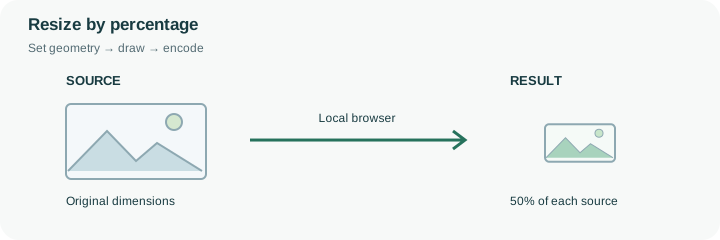
Percentage resizing treats each image relative to itself. At the default 50%, a 1600 × 900 source becomes approximately 800 × 450, while a 1200 × 1800 portrait becomes 600 × 900. The files share a scale factor but not a canvas size. This makes percentage mode useful when a mixed set should become proportionally smaller without adding bars or forcing every item into one rectangle.
Enter a percentage based on the required output, then review the dimensions reported for each result. Pixel dimensions must be whole numbers, so fractional results are rounded and very small sources cannot shrink indefinitely. A value above 100 asks for enlargement; the no-upscale setting must allow that, and the extra pixels cannot restore detail the original never contained. If an upload form specifies an exact width and height, percentage mode is less direct than pixel mode. Conversely, a bulk square preset would change the surrounding canvas rather than simply halve every image. After resizing, use the compressor only if there is also a byte cap, since a geometric reduction does not guarantee a particular encoded file size.
Each source dimension is multiplied by the selected percentage and rounded to a whole pixel. For example, a 1001 × 667 source at 50% becomes 501 × 334 under the engine’s rounding rule. This arithmetic example explains the setting; it is not a measured output benchmark. Very small results are kept at a minimum of one pixel per axis.
No-upscale limits a requested enlargement to the original size. A 150% selection will therefore not enlarge the picture until that protection is disabled. Percentage mode scales the source directly rather than adding a fixed surrounding frame, so different inputs keep different final dimensions. Verify each result before using this preset for a batch that actually requires one exact shared width and height.
Common questions
Each source axis is multiplied by one half. A 1600 × 900 image becomes approximately 800 × 450; the number of pixels is roughly one quarter, not one half.
No. Each file is scaled relative to its own dimensions. Use a fixed pixel canvas when all output rectangles must match.
Yes, when enlargement is allowed and the output stays within tool limits. Added pixels do not restore lost detail; review the no-upscale control.
No. The browser calculates the geometry and creates the output locally. The page itself still loads from the website, and source or output size can exceed the browser’s practical memory limits.
Yes. A next-step action can transfer the successful result through temporary local browser storage. Verify the final dimensions afterward because target-size compression can reduce them further.