Does removing a thumbnail delete the original page?
It removes that page from the output selection. The original file on your device is not edited in place; keep it as a reference.
Preview supported PDF pages, move them into the intended reading sequence and omit unwanted pages before creating a new document.
No signup · File contents stay on this devicePDF documents · files stay on your device
Up to 20 files · 25 MiB per file · 80 MiB total
Processing happens in your browser. File contents are not uploaded. Close the tab to release active files; temporary handoffs use local browser storage. · Privacy details
Measured with the listed sample and settings; these may differ from this page’s starting preset. Timings are individual processing-function runs in the stated environment and exclude page loading. Library caches may be warm. These small-file checks do not establish performance or compatibility for every document.
| Sample | Settings | Observed output | Environment |
|---|---|---|---|
| sample-document.pdf (3 pages; 2,246 bytes); sample-generated.pdf (2 pages; 238,413 bytes) ↗ | All 5 source pages in original order; no added bookmarks; automatic page previews | approximately 234.4 KB; 0.02 sec; 5 PDF pages | Chrome · Apple M2 / macOS · 15 Oct 2026 · local test |
Using this tool
Before you start
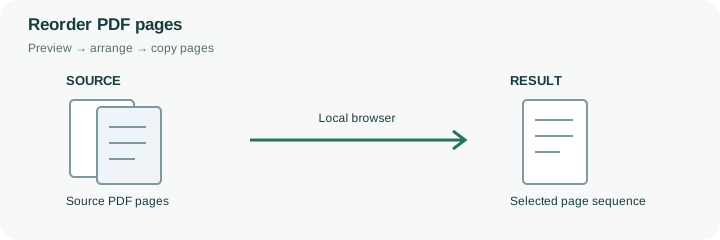
Page arrangement is useful when a scanned packet contains a misplaced cover, a duplicated blank page or an appendix in the wrong position. This preset prepares thumbnails after files are selected, so the visible sequence can be reviewed before creating the output. Moving or removing a thumbnail changes the selection for the new PDF; the source file on your device is not edited in place.
Compare the original page numbers printed on the document with the position shown in the thumbnail list. A page labeled 12 might be the third page of a selected appendix, so those two numbers serve different purposes. After moving pages, check the joins on both sides of every changed position and confirm that at least one page remains. Removing a page from a new copy is not secure redaction of information elsewhere in the document. This workflow also rejects encrypted, signed and interactive-form PDFs. Keep a separate original, save the arranged output with a clear filename, and reopen it to verify the final count and reading order before sharing it.
The preview identifies a page by its source file and original page number, while its position in the output sequence can change. A printed page label such as Appendix 12 may differ from both. Use visible content and the source reference together to avoid moving a similarly styled page from the wrong document.
The final selection must contain at least one page. Removing a thumbnail omits it from the new copy without changing the original file. The engine copies supported pages rather than rewriting their content, so it cannot remove a sensitive paragraph from a retained page. It also blocks encrypted, signed and interactive-form documents. Reopen the arranged PDF and check the pages immediately before and after each move or deletion.
Common questions
It removes that page from the output selection. The original file on your device is not edited in place; keep it as a reference.
No. Information can remain on other pages or in other structures. This tool does not analyze a document for confidential content or certify redaction.
Yes, supported source pages can be assembled in the selected sequence. Inspect the boundaries and reopen the final result to confirm the order.
No. Page copying and new-PDF creation run locally after the browser loads the required library. The files are not submitted to a server-side merge API.
Yes. Reopen it and check page count, sequence, document boundaries and any newly created bookmarks. A completed merge does not establish that the source packet was complete or correctly ordered.