Will re-encoding repair a blurry JPEG?
No. Compression cannot recover detail that is missing from the source. Use the best available original and avoid repeated generations of loss.
Reduce a JPEG copy with a target in KB, compare detail against the original, and keep the larger source for future edits.
No signup · File contents stay on this deviceJPG, PNG, WebP, AVIF or HEIC images · files stay on your device
or paste an image with Ctrl / Cmd + VUp to 30 files · 20 MiB per file · 80 MiB total
Processing happens in your browser. File contents are not uploaded. Close the tab to release active files; temporary handoffs use local browser storage. · Privacy details
Measured with the listed sample and settings; these may differ from this page’s starting preset. Timings are individual processing-function runs in the stated environment and exclude page loading. Library caches may be warm. These small-file checks do not establish performance or compatibility for every document.
| Sample | Settings | Observed output | Environment |
|---|---|---|---|
| sample-detail.jpg (1800 × 1200; 446,566 bytes) ↗ | 200 KB maximum; JPG; measured byte-size check | 201,892 bytes; 1800 × 1200 · 0.18 sec | Chrome · Apple M2 / macOS · 15 Oct 2026 · local test |
Using this tool
Before you start
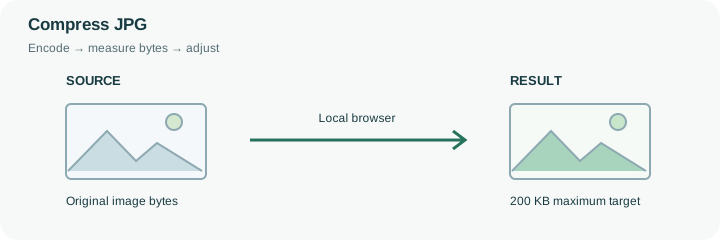
JPEG stores a photograph with lossy compression. Every decode-and-reencode pass can alter detail, so use the best original you have and make one deliberate delivery copy. This page begins with JPEG output, an 82% quality ceiling and a 200 KB target. The ceiling is a starting constraint, not a measurement of how much visual quality will survive or a fixed reduction percentage.
Inspect smooth skies for banding, high-contrast lettering for halos and fine textures for smeared patches. If quality must fall too far, a carefully chosen smaller image can be more useful than a very low-quality large one, provided the destination allows the new dimensions. The tool may make that dimensional trade-off to meet the cap, so read the result. An already-small JPEG may not benefit from another pass; the compressor checks the target, not a promise that every output is smaller than its input. Keep the master and compare the actual bytes of the copy you intend to send. Renaming a file cannot reproduce this encoding operation.
The 82% setting is the highest quality value this run initially tries. It can lower that value in a bounded search and reduce dimensions if needed to reach the 200 KB budget. It does not compare the JPEG with a camera master, estimate visual similarity or assign a percentage score to retained detail.
The search renders each attempted size from the decoded source rather than repeatedly shrinking its previous JPEG. Your own source may nevertheless already contain losses from earlier exports. Inspect smooth color transitions and sharp letters in the delivered copy. Read its actual bytes and dimensions together; a file that fits the cap can still be unsuitable for a recipient’s minimum size or legibility requirement.
Common questions
No. Compression cannot recover detail that is missing from the source. Use the best available original and avoid repeated generations of loss.
No. It is an encoder setting, not a byte ratio. Texture, dimensions and source content affect the actual result.
A source already under the selected maximum may not benefit from re-encoding. The success check is the selected cap, not a guaranteed percentage reduction.
No. Encoding and byte checks run in the browser. Page resources still load from the website. Keep sensitive source files on a trusted device and inspect the output before sharing it.
No. Forms can also restrict format, minimum dimensions, content and decimal byte limits. Compare the reported bytes and dimensions with every requirement before uploading the finished copy there.