Is the output always exactly 100 KB?
No. Encoders produce different sizes for different content. A successful result is at or below the chosen byte limit; an unsuccessful attempt reports an error.
Start with a 100 KB maximum. Quality and dimensions can decrease; the tool checks the result’s bytes before offering a download.
No signup · File contents stay on this deviceJPG, PNG, WebP, AVIF or HEIC images · files stay on your device
or paste an image with Ctrl / Cmd + VUp to 30 files · 20 MiB per file · 80 MiB total
Processing happens in your browser. File contents are not uploaded. Close the tab to release active files; temporary handoffs use local browser storage. · Privacy details
Measured with the listed sample and settings; these may differ from this page’s starting preset. Timings are individual processing-function runs in the stated environment and exclude page loading. Library caches may be warm. These small-file checks do not establish performance or compatibility for every document.
| Sample | Settings | Observed output | Environment |
|---|---|---|---|
| sample-detail.jpg (1800 × 1200; 446,566 bytes); sample-transparent.png (1600 × 1000; 43,511 bytes) ↗ | 100 KB maximum; JPG; measured byte-size check | 100,121 bytes; 1800 × 1200 · 0.18 sec | 96,541 bytes; 1600 × 1000 · 0.03 sec | Chrome · Apple M2 / macOS · 15 Oct 2026 · local test |
Using this tool
Before you start
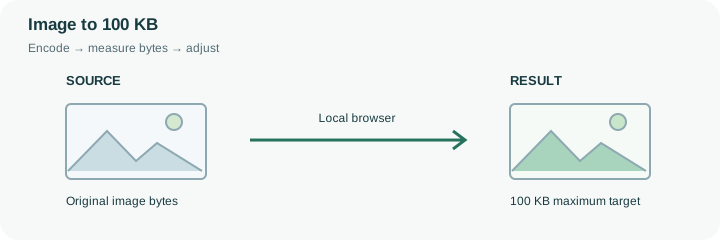
Use the receiving form’s dimension and format rules together with its 100 KB limit.
Inspect hair, logos, and any text after compression rather than checking bytes alone.
This preset begins at 100 KB with JPEG output. The cap is 102,400 bytes, so a form explicitly requiring fewer than 100,000 bytes needs a lower setting; 97 KB produces a 99,328-byte maximum. That small distinction can explain why a file labeled 100 KB is rejected by another system even when this tool correctly reports success.
Start from the original instead of recompressing a previously reduced copy. Check a photograph’s eyes, hair and edges or a document’s smallest text after processing. The search may lower quality while retaining dimensions, or reduce the dimensions if necessary. It cannot guarantee a minimum width. A useful workflow is to read the destination’s requirements first, compress once, then compare the result’s width, height and bytes against all of them. If an existing file is comfortably within the allowed size and looks good, another encoding step may add no value. The recorded benchmark shows one fixture and one setting; your image content will change the result.
The preset starts at 102,400 bytes, while a form saying 100,000 bytes uses a different limit. A 97 KB setting here gives a 99,328-byte cap. This conversion is arithmetic, not a promised output size: the encoder may produce a considerably smaller file. The selected target applies independently to each output.
The engine searches JPEG quality first and may then reduce dimensions. Examine whether a required signature line, reference number or portrait detail remains useful after that trade-off. When minimum pixels and maximum bytes cannot both be met, the tool cannot authorize an exception for the receiving form. Keep the original, review the actual result row and test the checked copy at its destination before discarding any delivery alternative.
Common questions
No. Encoders produce different sizes for different content. A successful result is at or below the chosen byte limit; an unsuccessful attempt reports an error.
Do not submit a result that violates the destination’s minimum dimensions. This tool may shrink the image to meet the byte limit. Try another accepted format, a cleaner source, or a different limit if the destination permits it.
This tool uses 1 KB = 1,024 bytes. Some forms use 1,000 bytes per KB or round differently. Choose a slightly lower target if needed and use the destination’s validation as the final check.
No. Encoding and byte checks run in the browser. Page resources still load from the website. Keep sensitive source files on a trusted device and inspect the output before sharing it.
No. Forms can also restrict format, minimum dimensions, content and decimal byte limits. Compare the reported bytes and dimensions with every requirement before uploading the finished copy there.