Does 200 KB mean 200,000 bytes here?
The control uses 1024 bytes per KB, so 200 KB means 204,800 bytes. Enter 195 KB for a maximum of 199,680 bytes when a decimal limit applies.
Start with a 200 KB target, reduce JPEG quality and dimensions only as needed, and check both the actual byte size and retained detail.
No signup · File contents stay on this deviceJPG, PNG, WebP, AVIF or HEIC images · files stay on your device
or paste an image with Ctrl / Cmd + VUp to 30 files · 20 MiB per file · 80 MiB total
Processing happens in your browser. File contents are not uploaded. Close the tab to release active files; temporary handoffs use local browser storage. · Privacy details
Measured with the listed sample and settings; these may differ from this page’s starting preset. Timings are individual processing-function runs in the stated environment and exclude page loading. Library caches may be warm. These small-file checks do not establish performance or compatibility for every document.
| Sample | Settings | Observed output | Environment |
|---|---|---|---|
| sample-detail.jpg (1800 × 1200; 446,566 bytes); sample-transparent.png (1600 × 1000; 43,511 bytes) ↗ | 200 KB maximum; JPG; measured byte-size check | 201,892 bytes; 1800 × 1200 · 0.14 sec | 96,541 bytes; 1600 × 1000 · 0.02 sec | Chrome · Apple M2 / macOS · 15 Oct 2026 · local test |
Using this tool
Before you start
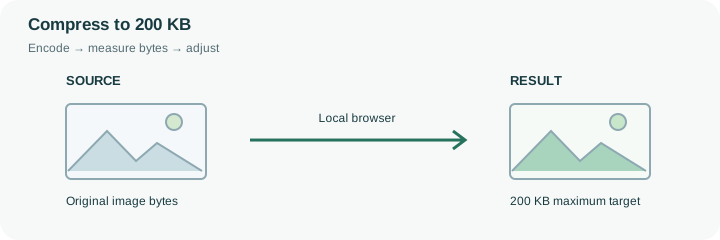
A 200 KB target can retain more detail than a 50 KB target for the same source, but it still does not predict a fixed image quality. Noise, foliage and fine text are harder to encode compactly than broad areas of one color. This preset uses JPEG output with an initial quality ceiling of 88% and a cap of 204,800 bytes. If a form means 200,000 bytes, choose 195 KB for a 199,680-byte cap.
Begin with the original image and inspect the result at full size. If the file still needs to be smaller, enter the actual destination limit rather than repeatedly running an already-compressed copy through the tool. The search can reduce quality first and dimensions afterward. It does not enforce a minimum width, so check that requirement separately. For a transparent logo or screen graphic, JPEG may be the wrong format even when it reaches the desired byte size; choose PNG or WebP if accepted and inspect their results. The most useful output is one the recipient can open and read, not simply the smallest possible download.
A 200 KB cap is 204,800 bytes in this control. For a decimal 200,000-byte limit, 195 KB permits 199,680 bytes. The result need not land close to either cap: a simple image can be much smaller, and the search keeps the actual passing Blob rather than padding it to a target size.
Compare fine detail with the original before lowering the budget further. A higher allowed size can leave more room for texture but does not guarantee a particular visual quality. The encoder can also reduce dimensions if its quality search cannot meet the cap. Check minimum-width requirements separately and avoid a second compression run merely because the file did not finish at exactly 200 KB.
Common questions
The control uses 1024 bytes per KB, so 200 KB means 204,800 bytes. Enter 195 KB for a maximum of 199,680 bytes when a decimal limit applies.
It gives the encoder a larger budget for the same source, but actual quality depends on content, format and dimensions. Inspect the downloaded result.
Yes. The engine can reduce dimensions when changing quality is insufficient. Check minimum width and height requirements separately.
No. Encoding and byte checks run in the browser. Page resources still load from the website. Keep sensitive source files on a trusted device and inspect the output before sharing it.
No. Forms can also restrict format, minimum dimensions, content and decimal byte limits. Compare the reported bytes and dimensions with every requirement before uploading the finished copy there.