Can I use a JPG page in a slide?
Yes, if the resulting pixel dimensions are sufficient for the slide. Check at presentation size rather than only in a small thumbnail.
Render selected PDF pages as JPEG images for previews or applications that require JPG. Choose enough resolution to keep small text readable.
No signup · File contents stay on this devicePDF documents · files stay on your device
Up to 20 files · 25 MiB per file · 80 MiB total
Processing happens in your browser. File contents are not uploaded. Close the tab to release active files; temporary handoffs use local browser storage. · Privacy details
Measured with the listed sample and settings; these may differ from this page’s starting preset. Timings are individual processing-function runs in the stated environment and exclude page loading. Library caches may be warm. These small-file checks do not establish performance or compatibility for every document.
| Sample | Settings | Observed output | Environment |
|---|---|---|---|
| sample-document.pdf (3 pages; 2,246 bytes) ↗ | JPG; all pages; longest edge 1600 px | approximately 51.0 KB; 1131 × 1600 · 0.07 sec | approximately 51.9 KB; 1131 × 1600 · 0.10 sec | approximately 52.0 KB; 1131 × 1600 · 0.12 sec | Chrome · Apple M2 / macOS · 15 Oct 2026 · local test |
Using this tool
Before you start
Pages dominated by photographs can suit JPG. For dense text, thin lines, or screenshots, compare PNG before deciding.
A preview of a single page does not require rendering an entire long document. A smaller page selection uses less memory and is easier to review.
JPG can be useful for a PDF page dominated by photographs, particularly when the output will be inserted into a slide or shared as a compact preview. The chosen longest edge sets the resolution of the whole page, including its margins. A photograph occupying only a quarter of the page therefore receives fewer pixels than the full output dimensions might suggest. This operation does not retrieve that photograph’s original embedded file.
Select only the pages you need, such as 1,3-4, and inspect the final images at presentation size. Compression can make small lettering or thin diagram lines less distinct, even when a thumbnail looks fine. Compare PNG for text-heavy material. The page background is rendered as opaque; the output cannot preserve PDF links, selectable wording or signature verification. Keep the original PDF alongside the image if readers need those features. For supported password-protected files, use the password field only for documents you are authorized to open, then confirm that every requested page rendered as expected.
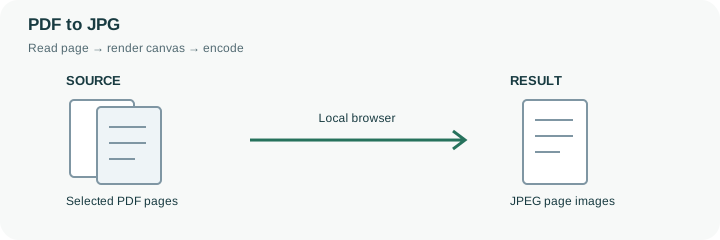
Two steps affect this output: PDF.js renders a page at the chosen resolution, then the browser encodes that canvas as JPEG. A higher JPEG quality cannot recover letters already too small on the rendered canvas. Increase the longest edge for necessary detail within the tool’s limits, then inspect the downloaded image rather than judging only a thumbnail.
The result is opaque and includes the full visible page, not only its photographs. Links and selectable words are no longer interactive. If an output must also meet a byte cap, pass the image to the compressor and inspect its dimensions again, since reaching a tighter cap can reduce them. Preserve the PDF for readers who need searchable text or document verification.
Common questions
Yes, if the resulting pixel dimensions are sufficient for the slide. Check at presentation size rather than only in a small thumbnail.
The tool renders selected pages as individual page images. Review the page numbers when downloading multiple results.
No. A signature may be visible in the rendered page, but an image does not retain cryptographic signature verification.
PDF.js and its worker render them locally in the browser. The worker and support files may need to load first; that is different from uploading your PDF to a rendering service.
Usually it serves as a preview or visual insert. Retain the PDF for searchable text, links, navigation, accessibility information or document verification that an ordinary page image cannot provide.