Canva video has no sound: isolate the track before exporting
Find whether silence begins in the source, the design timeline, the downloaded MP4, or the uploaded player before changing every clip.
Play the affected passage with Preview in Canva. If it is silent there too, select the intended video or audio track and inspect its volume. If Canva's preview has sound but the download does not, compare a fresh MP4 Video in a local player before editing the mix.
In this guide
Canva video designs in a desktop browser. Covers clip/track volume, audio placement, preview, and MP4 comparison. Mobile layouts, copyright restrictions imposed by a destination, and damaged media need separate diagnosis.
Listen in the editor before changing the download
Use a copy of the design and keep the original media. Do not delete every audio track to investigate one silent section.
Identify which sound is missing
A video clip's original sound and a separate music or voiceover track are different items. Pick one recognizable moment: a spoken word, a clap, or the start of the music. Ask whether that particular sound is absent, rather than whether the whole design is quiet.
| What you hear | Next comparison |
|---|---|
| Music plays, speech is absent | The speaking video's sound or the separate voiceover track |
| Speech plays, music is absent | The music track's volume and coverage of this passage |
| Sound stops at one point | The end of the intended audio item on the timeline |
| Everything is silent | Browser/player output first, then the selected media and its volume |
Play the original uploaded file outside Canva. If the same sound is absent there, export settings cannot recover it. Obtain a source containing the intended recording, or add an appropriate voiceover.
Adjust the selected item, not the whole mix
For a timeline-based design, select the audio track or video containing the missing sound. Choose the volume icon on the toolbar above the editor and inspect its slider or text box. A zero setting is a reason to raise this item's level and replay the same passage; it is not a reason to raise all the music.
Canva documents separate track/video selection in its audio editing guide. Balance all is a different control that adjusts audio and video throughout the design. Leave that out of the first comparison so unrelated clips keep their levels.
If sound exists but only the opening or ending is too quiet, inspect the item's fade duration. For an audio track, select it and use Fade. For sound inside a video element, select the video on the canvas, then open Audio tools and inspect Fade in and Fade out. Try a shorter fade on the design copy and compare just that boundary.
Follow the sound along the timeline
Look at the intended audio track's start and end relative to the silent passage. If the bar ends before the footage does, increasing its volume will not extend its coverage.
Canva's audio guide describes trim handles and More > Adjust, which changes the portion of a track used. Before dragging either, note which words or music cue should line up with the picture. Replay immediately before and after the changed boundary: restoring the ending while shifting an earlier voiceover is a poor trade.
Compare the file that will actually be sent
Choose Share > Download > MP4 Video, keep the default quality for this comparison, and confirm the page selection. Canva's file-type reference lists MP4 for designs with music; an animated GIF is not the appropriate output for that goal.
Give the new file a distinct name. Play the affected passage locally with the player's volume on. If necessary, compare in a second local player:
- Sound is present locally but absent after upload: inspect the destination's playback/mute state and any notice about the audio. Preserve the working MP4 for comparison.
- Sound is absent in the fresh MP4 but present in Canva: repeat the comparison on just the affected page, using the page choices in Canva's video download guide.
For an unresolved Canva export discrepancy, use the help route in that download guide. Include the browser, selected page, which sound is missing, and the preview-versus-local result. Share a nonconfidential sample through support; do not expose a client design publicly.
If the download loses movement rather than sound, use the animation export guide. For a video that plays but looks soft, see download sharpness checks.
Sources
Based on official documentation; not independently tested. Sources checked Oct 4, 2026. How we review guides
Something out of date? Let us know.
Related fixes
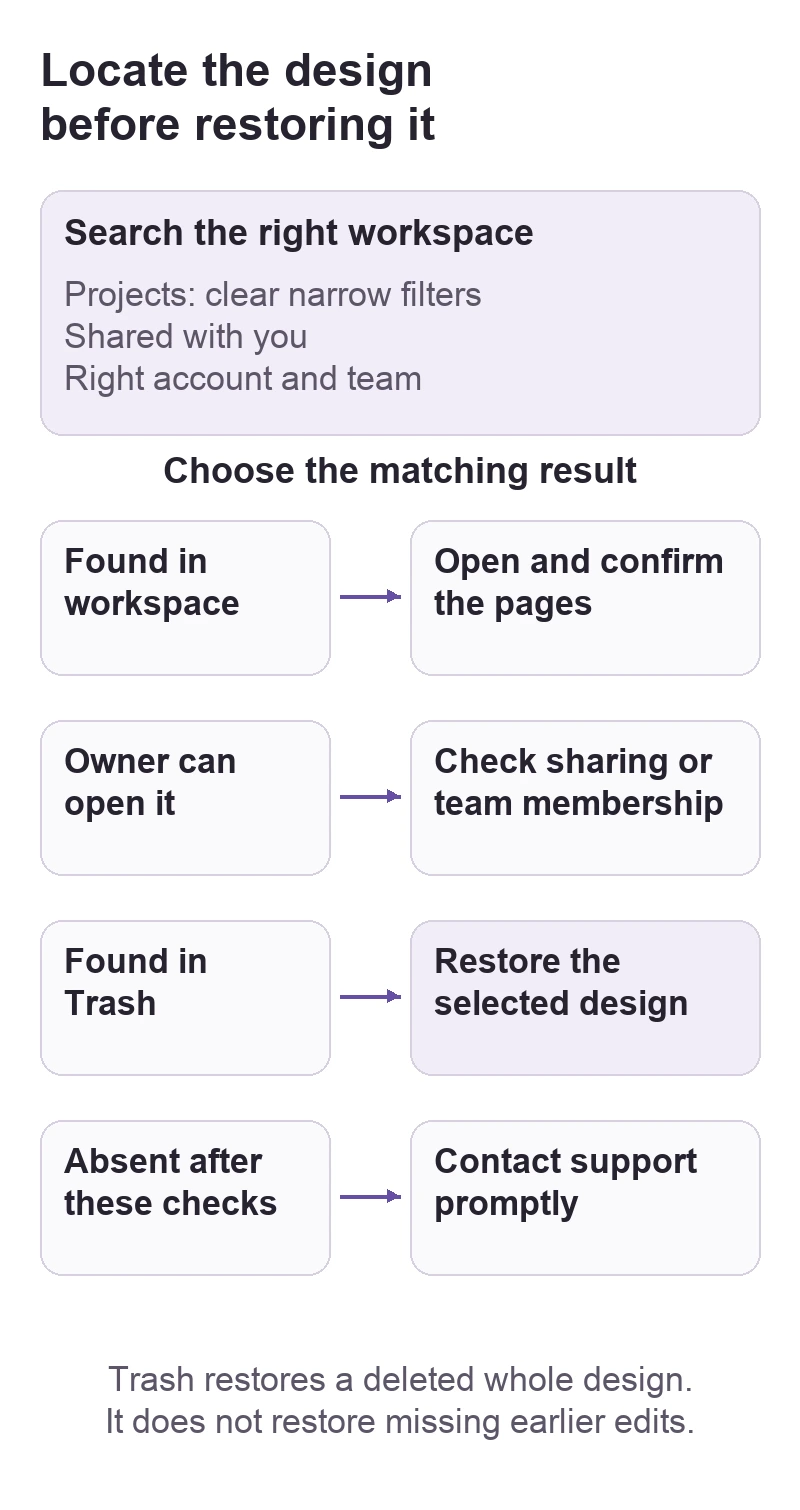
Canva design is missing from Projects
Find a design hidden by search filters, another account or team, or the shared-design view, then use Trash only when the design was actually deleted.
 Canva
CanvaCanva animation disappears from the downloaded file
Choose a motion format, confirm the right pages, and separate an export problem from a preview or destination that only shows a still image.
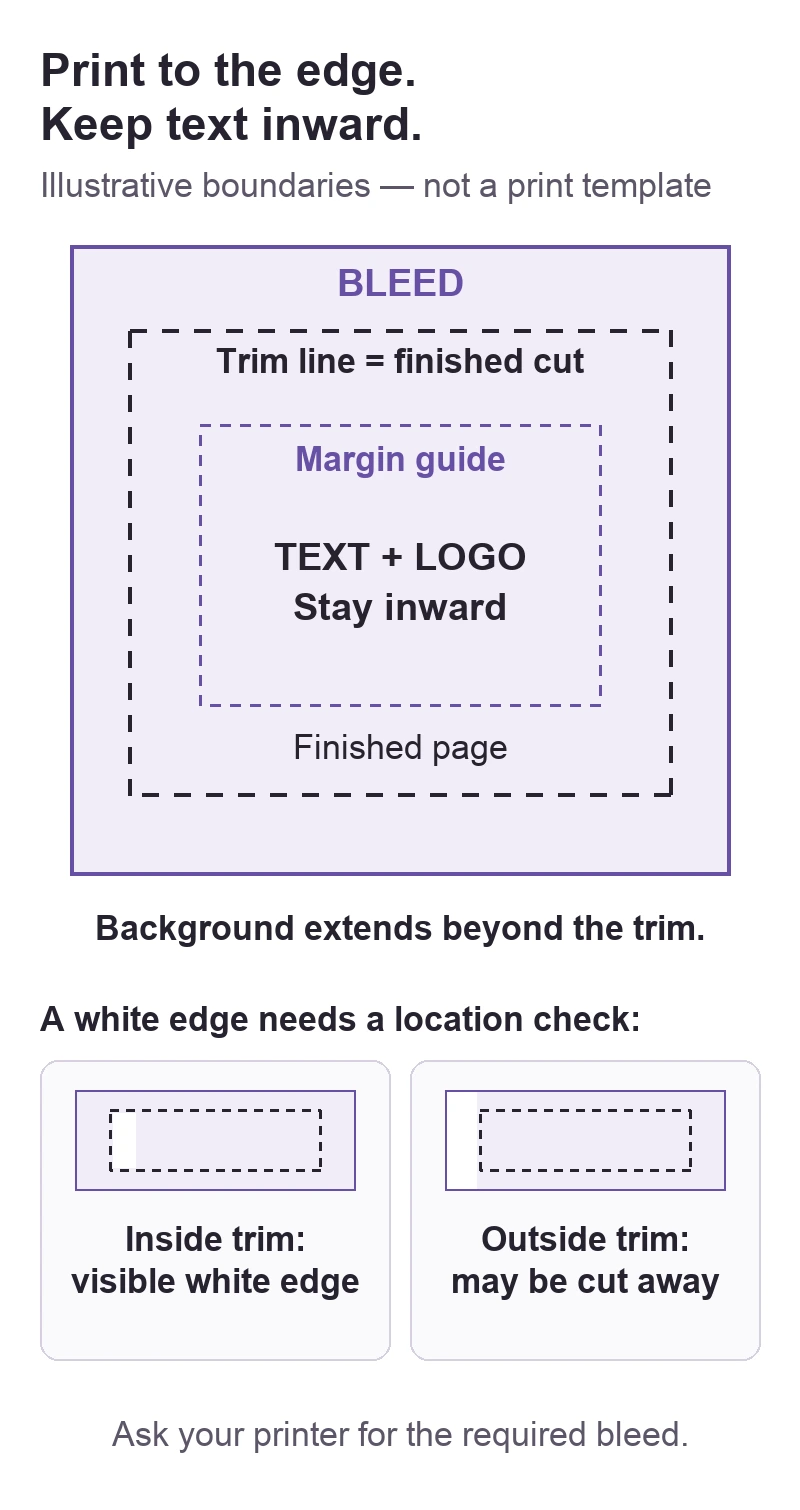
Canva prints with white edges: check bleed before exporting
Find whether a white border comes from the design edge, PDF export, or the way the page is printed and trimmed.