Premiere Pro audio drifts out of sync during a long clip
Distinguish growing sync drift from a fixed offset, check variable-frame-rate source settings, and compare a constant-frame-rate copy before replacing media.
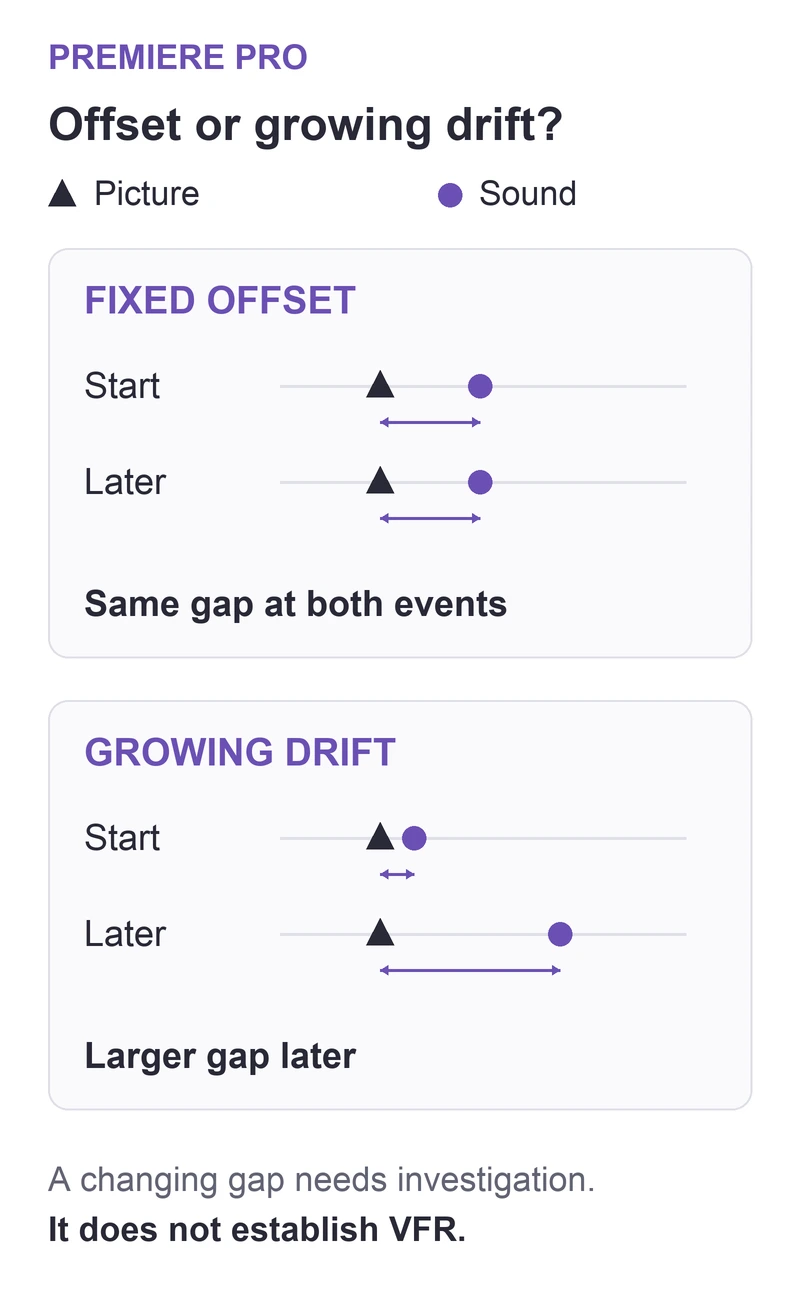
For a phone or screen recording whose sound falls farther behind as it plays, right-click the source in Premiere's Project panel and select Properties. Look for a variable-frame-rate warning. Moving the audio a few frames can correct a fixed offset; it cannot correct a gap that keeps changing.
In this guide
Premiere Pro desktop on Windows or macOS, with imported video containing its own recorded audio. Adobe's VFR FAQ documents support from 12.0.1 onward; source-control availability varies by codec and release. External-recorder clock drift and HDR/color-preserving transcoding are outside this workflow.
Check the source before moving the audio
Save a project copy and retain the original recording before changing source settings or converting media.
Compare the beginning and a later event
Choose two visible events with distinct sounds, such as a hand clap near the beginning and another later in the recording. Compare them in the original file, the Source Monitor, and the edited sequence.
| Pattern | Next check |
|---|---|
| Similar gap at both events | Clip placement or a fixed recording offset |
| Small gap first, larger gap later | Source timing, including variable frame rate |
| Source is aligned but the edit is not | Timeline edits or speed changes |
Growing drift is a reason to investigate VFR, not proof that every phone recording uses it. This guide concerns a recording with its own audio; independently recorded sound can have a separate timing problem.
Check the VFR decoding choice if it is available
Adobe's employee-written VFR FAQ documents Variable Frame Rate Detected in the source properties. Open that original clip in the Source Monitor, then go to Effect Controls. For a supported source that exposes MPEG Source settings, inspect Preserve Audio Sync.
That choice can add or drop video frames to keep sound aligned, so review motion as well as speech. Smooth Video Motion prioritizes the available video frames rather than audio synchronization. Note the original choice and compare the same two events after a change. If sync preservation is already selected and drift remains, move to the CFR comparison below. If these source controls are absent, do not reset Premiere to make them appear; their availability depends on the source and release.
Compare a constant-frame-rate copy when drift remains
Adobe recommends converting troublesome VFR recordings to constant frame rate, including before proxy or consolidation workflows. Create a separate local output and import it as a new item first. Do not replace every edited instance until the copy has passed your timing and picture checks.
In HandBrake's frame-rate controls, Constant Frame Rate (CFR) makes one rate throughout; Peak Frame Rate (PFR) only limits the maximum. A frame-rate number by itself is therefore not enough to establish CFR. Choose the rate appropriate for the recording and inspect the converted file's duration, motion, sound, and image quality. A conversion can change the picture; keep the original.
Modify > Interpret Footage > Assume this frame rate is a different operation. Adobe's interpretation guide explains that it changes playback duration throughout the project. Do not use it as a substitute for making a correctly timed CFR file.
Import the comparison copy into an empty sequence and check both events again. Then make a short export that includes the later event. If drift persists, use the Adobe Community route in the FAQ with the Premiere version, source properties, and the two comparison times. If speech is aligned but plays on only one side, use the separate dialogue-channel guide.
Sources
Based on official documentation; not independently tested. Sources checked Oct 3, 2026. How we review guides
Something out of date? Let us know.
Related fixes
Premiere Pro exports proxy-quality footage
Check whether the export explicitly uses proxies, then confirm that each clip is connected to its full-resolution original.
Premiere Pro holds the wrong frame
Choose the exact source frame for a still hold, and understand why trimming the clip does not necessarily change the frozen image.
Premiere Pro adds video to the timeline without its audio
If a clip has sound in the Source Monitor but arrives without an audio clip, inspect source patching before changing audio levels.