Editing one Photoshop Smart Object changes its copies
Use an independent embedded Smart Object copy for a different design variant, and check external links before saving changes to shared artwork.
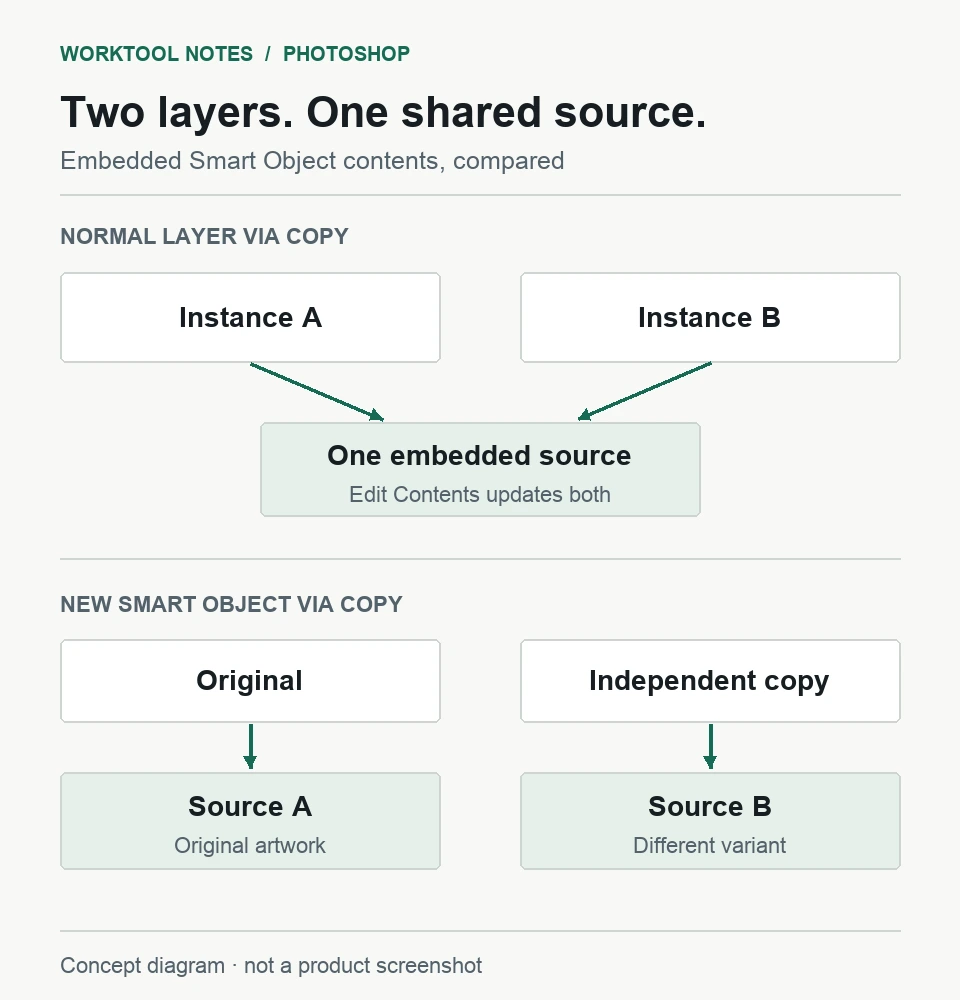
For an embedded Smart Object whose artwork should differ from the original, select it in the Layers panel and choose Layer > Smart Objects > New Smart Object Via Copy. A normal Layer Via Copy keeps the contents shared, so editing one instance can update the others.
In this guide
Photoshop desktop on Windows and macOS. Main procedure is for an embedded Smart Object; externally linked objects need the separate source-path and embedding decision. English menus were checked against current Adobe desktop documentation. This does not promise to remove dependencies inside nested Smart Objects or restore an already overwritten source.
Create a copy with its own contents
Save a separate layered document first. If the layer references an external file, protect that file too and use the linked-file check below before editing its contents.
Decide what should change independently
Imagine a layout with two versions of a badge. Changing the wording inside one badge should leave the other wording alone. That requires independent contents, not just two rows in the Layers panel.
| Intended change | First choice |
|---|---|
| Update the same logo in every repeated instance | Keep the shared Smart Object contents |
| Give one embedded copy different artwork | New Smart Object Via Copy |
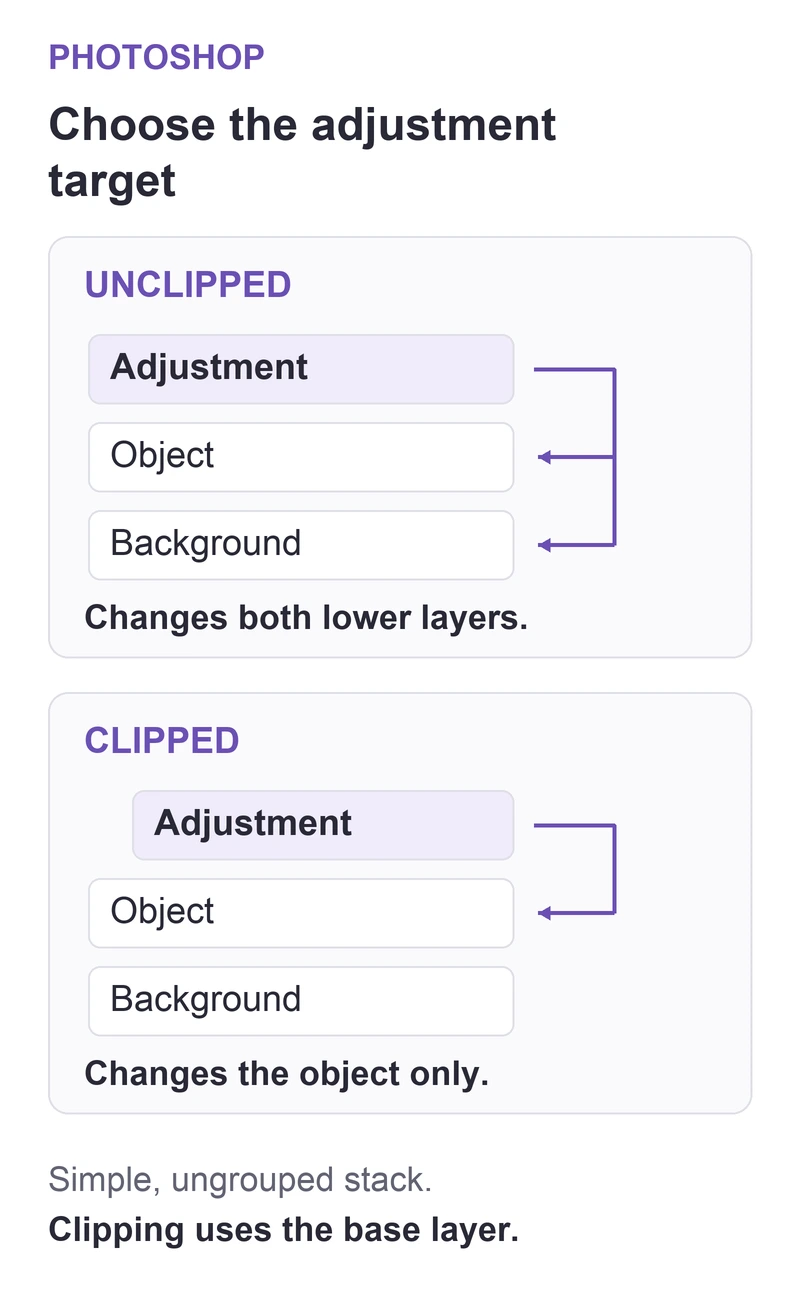
| Limit an adjustment to one placed object | A clipped adjustment in the containing document |
| Hide part of one object | A layer mask in the containing document |
A differently named layer is not evidence of independent contents. Adobe's duplication guide distinguishes the shared and independent copying commands. If only a color correction should be local, use the separate adjustment-clipping guide.
Make one independent variant and compare it
- Open Window > Layers and select the embedded Smart Object you want to use as the starting point.
- Choose Layer > Smart Objects > New Smart Object Via Copy. Identify the new layer before opening anything.
- Select that new layer and choose Layer > Smart Objects > Edit Contents.
- In the source document that opens, make the intended small variant, then save it.
- Return to the containing document and compare the new variant with the original. The original's artwork should remain unchanged.
Edit Contents opens the application appropriate to the source format. Illustrator artwork may open in Illustrator. Saving the source updates its corresponding instances; closing it without saving is not a useful independence check.
Leave the earlier shared copy in place until the new variant looks right. If the shared artwork was already overwritten, making an independent copy now will not reconstruct the earlier design; start from a retained approved version.
Check external links before changing a shared master
Photoshop uses two different kinds of sharing: duplicate instances within a document, and Linked Smart Objects that reference external files. The latter can be used by other documents as well.
Select the layer and open Window > Properties. For a Linked Smart Object, Adobe documents the external source path in its properties guide. An external client logo is a reason to stop before saving a source edit.
If this document needs a local variant instead of future updates from that file, work in the saved document copy: right-click the selected layer and choose Embed Linked, then create the independent copy described above. Adobe's embedding instructions show the link icon disappearing. Embedding changes that update relationship; keep the original linked master if it still needs shared updates. There is no need to embed every layer.
For a complex template containing further linked assets inside its Smart Objects, inspect those sources separately. Do not assume that copying the outer container removes every nested dependency.
If one small embedded variant still updates the original, use the Community link in Adobe's duplication guide with the Photoshop version and a sanitized layer structure. If Photoshop refuses painting on the layer, see the different not-directly-editable guide.
Sources
Based on official documentation; not independently tested. Sources checked Oct 4, 2026. How we review guides
Something out of date? Let us know.
Related fixes
A Photoshop adjustment changes other layers too
Limit a color or tone adjustment to one underlying layer with a clipping mask, then distinguish a wrong target from a mask or selection problem.
 Photoshop
Photoshop exports extra transparent space around artwork
Trim an export copy to the visible artwork without changing the fixed canvas used by your working document.
Photoshop cannot save a document larger than 2 GB
Save a large layered master as PSB without flattening the only editable copy, and separate format limits from storage errors.