Google Sheets lets you edit the file but blocks certain cells
Distinguish file-level Editor access from a protected range, inspect the blocked cell address, and change only the permission that the task requires.
If you can edit one part of a Google spreadsheet but a particular cell is blocked, inspect that cell's protection before requesting the same file access again. File-level Editor permission and permission to edit a protected range are different checks.
In this guide
Native Google Sheets in a desktop browser for personal and Google Workspace accounts. File-role comparison uses My Drive sharing. Office-format .xlsx files need a separate format check. Mobile controls, password protection, and automated Apps Script rules are not covered.
Separate file access from cell protection
Start with one blocked cell address, such as C7, and the original spreadsheet link. Ask the owner which input cell you are meant to use; a calculated total may be locked deliberately.
When the whole spreadsheet is read-only
Open Share and compare your signed-in account with its role. A Viewer or Commenter cannot edit the file. Ask for Editor access only if your work requires changes; do not make the spreadsheet public to resolve one person's access.
Google's sharing reference distinguishes these file roles. If the link itself will not open, use the shared-file access guide first. A range permission cannot grant access to a file you cannot open.
Find the rule covering the blocked cell
Choose Data > Protect sheets and ranges, select the rule, and compare its Range with the blocked address. For a whole-sheet rule, inspect Except certain cells.
For a project tracker, compare an intended input in B7 with its calculated total in C7. If only C7 is supposed to be locked, the owner should inspect whether the rule reaches B7 too. The useful question is which address belongs in the rule, not whether the entire spreadsheet needs to be unlocked.
Adjust only the intended permission
Record the rule's range and allowed editors first. An authorized editor can use Change permissions > Restrict who can edit this range > Custom, add the intended editor, and select Done. Owners retain access.
A warning-only rule permits confirmed edits; it does not deny access. Google's protection guide explains these controls.
The protection menu is missing
An .xlsx workbook being edited in Sheets may still be an Office-format file. Google's Office-file guide says native protected ranges require conversion, which creates a separate Google-format copy. Keep the original and agree which file collaborators should use before converting; this changes the working format, not someone's permission.
Check the input without opening the whole sheet
Have the intended editor revisit the same link and confirm that the approved input is editable while the calculated cell remains protected. Use an agreed blank input or a harmless value, then restore it; do not overwrite a live total for the check.
Protection controls editing, not confidentiality. People with file access may still copy or export its contents, so keep sensitive information out of a spreadsheet shared with an unsuitable audience.
For an unexplained block, use Need more help? on Google's protection page. Give the file type, blocked address, role, and relevant rule, with names and business data redacted.
Sources
Based on official documentation; not independently tested. Sources checked Oct 4, 2026. How we review guides
Something out of date? Let us know.
Related fixes
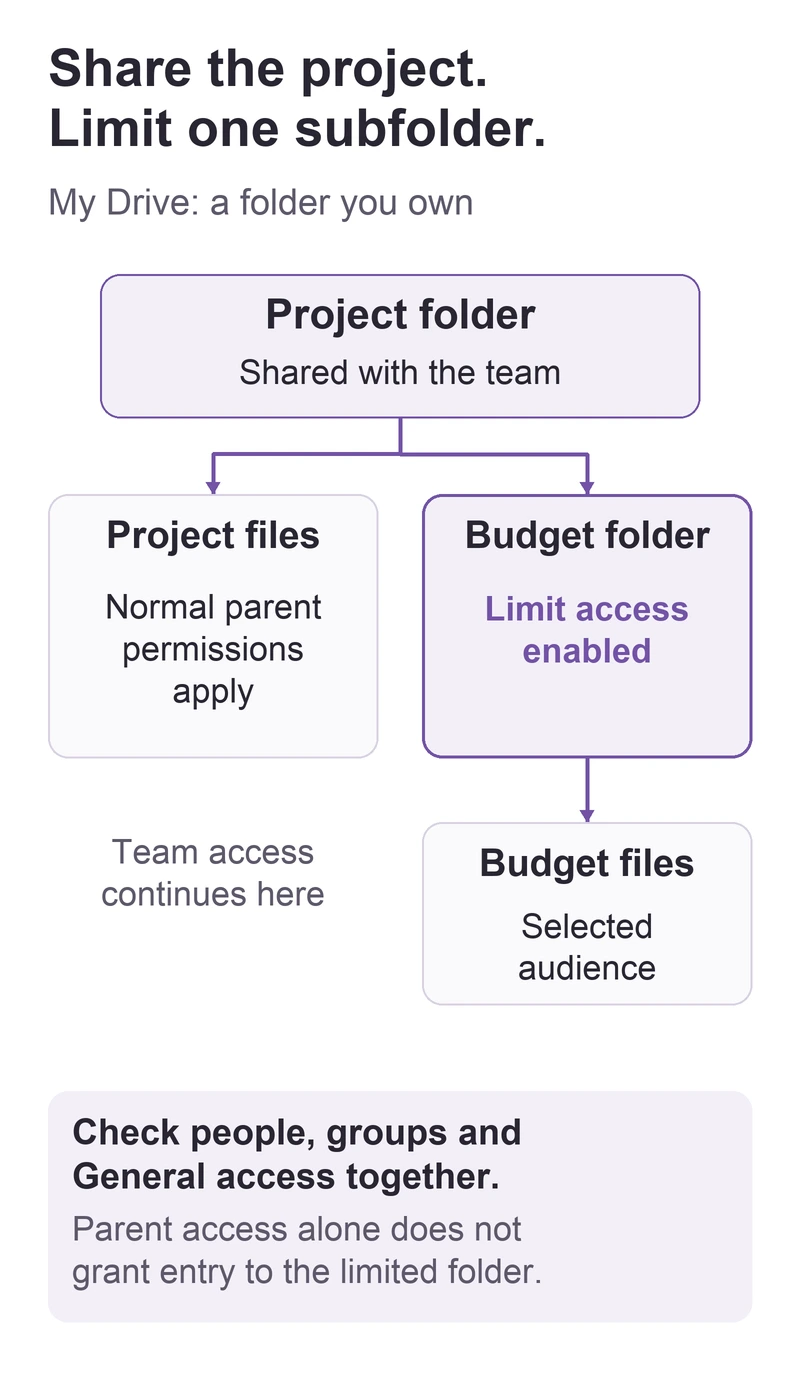
Google Drive will not remove inherited access from one subfolder
Check the parent folder before removing a person, then use a limited-access subfolder when only part of a shared project needs a smaller audience.
 Google Drive
Recover earlier Google Docs text without rolling back the whole document
Copy an earlier document version, recover the passage you need, and keep newer edits in the shared original.
Google Drive ownership transfer is unavailable or pending
Check the current owner, account types, and pending invitation before trying to hand over a file in My Drive.