Google Drive will not remove inherited access from one subfolder
Check the parent folder before removing a person, then use a limited-access subfolder when only part of a shared project needs a smaller audience.
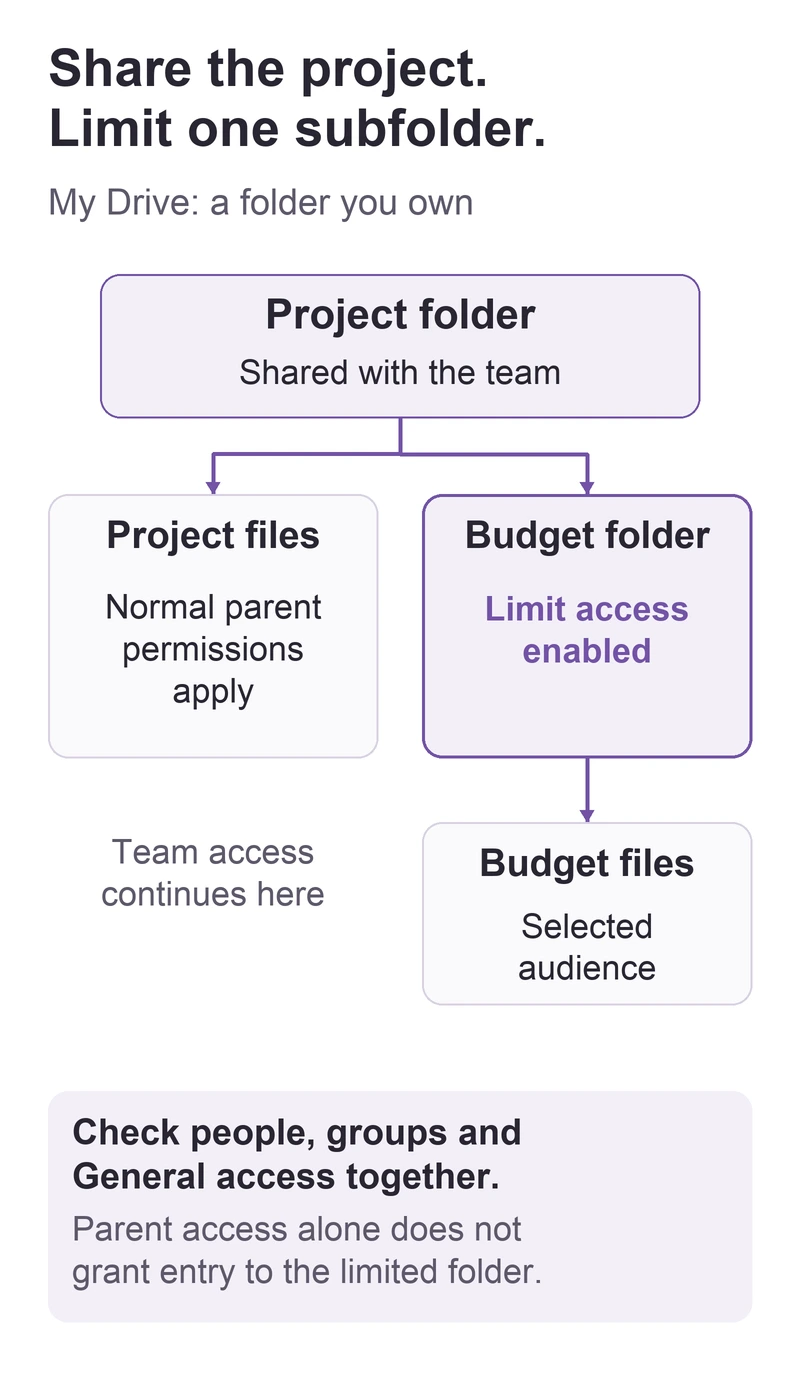
If Drive offers to change the parent folder when you try to remove someone from a file or subfolder, their access may be inherited. To keep the main project shared while narrowing one subfolder, use Limit access on that subfolder in Drive on the web.
In this guide
Google Drive in a computer browser; limited-access folders you own in My Drive. Shared-drive manager workflows, administrator policy changes, and automatically limited individual files are outside this procedure.
Check the parent folder first
Locate the permission you need to change
Right-click the affected subfolder and choose Share > Share. Compare its sharing entries with the parent folder's. Follow the actual folder links; matching names do not establish that you are inspecting the same project. Google's permission model also explains that a file keeps one link while access is checked against the signed-in identity.
Google's folder-sharing guide explains that normal child items inherit parent permissions. A file cannot give someone less access than they already receive from its folder.
For example, a team may need the shared project folder while only two people need a budgeting subfolder. Removing the whole team's parent permission would interrupt the broader project. Narrow the budgeting folder instead.
Limit the subfolder you own
These steps are for a folder you own in My Drive:
- Right-click the subfolder and choose Share > Share > Settings.
- Turn on Limit access.
- Select Back, then add or remove the intended recipients in the sharing dialog.
- Review People with access and General access together before considering the change complete.
Google's limited-access guidance explains why Access removed is not a complete denial list: a person can still get access through an allowed group or General access. Do not use that label alone as proof that they are excluded.
Workplace policy may prevent a requested invitation. Keep the work in its approved account and ask the Workspace administrator for an allowed arrangement.
Check the result from the intended accounts
Have an intended recipient open the original subfolder link. With a collaborator who should retain only parent access, check that the main project still opens and the limited subfolder does not. Inspect a representative file inside as well, including any separate sharing it has.
A manually limited folder may still appear gray to people who can see its parent. Its name is therefore unsuitable for information that must itself remain hidden. Drive for desktop does not provide the controls for managing this setting; return to the website.
If you only need to restrict one file, Google's guidance uses a dedicated limited-access subfolder. Plan the move and recipient checks first. The sharing restrictions guide also explains why preventing an editor from resharing a file does not cancel permission inherited through its parent.
For a missing control or an unexplained access result, use Need more help? on Google's limited-access page. Include whether the item is in My Drive and whether you own it. A recipient who cannot open any shared item should start with the shared-file access checks.
Sources
Based on official documentation; not independently tested. Sources checked Oct 3, 2026. How we review guides
Something out of date? Let us know.
Related fixes
Recover earlier Google Docs text without rolling back the whole document
Copy an earlier document version, recover the passage you need, and keep newer edits in the shared original.
Google Drive ownership transfer is unavailable or pending
Check the current owner, account types, and pending invitation before trying to hand over a file in My Drive.
Keep Word and Excel uploads in their original format in Google Drive
Separate automatic upload conversion from Office editing, so a client delivery stays a Word document or Excel workbook.