Fix an Excel #SPILL! error without clearing useful cells
Find what blocks an array result, keep source tables intact, and choose an unmerged destination before deleting report content.
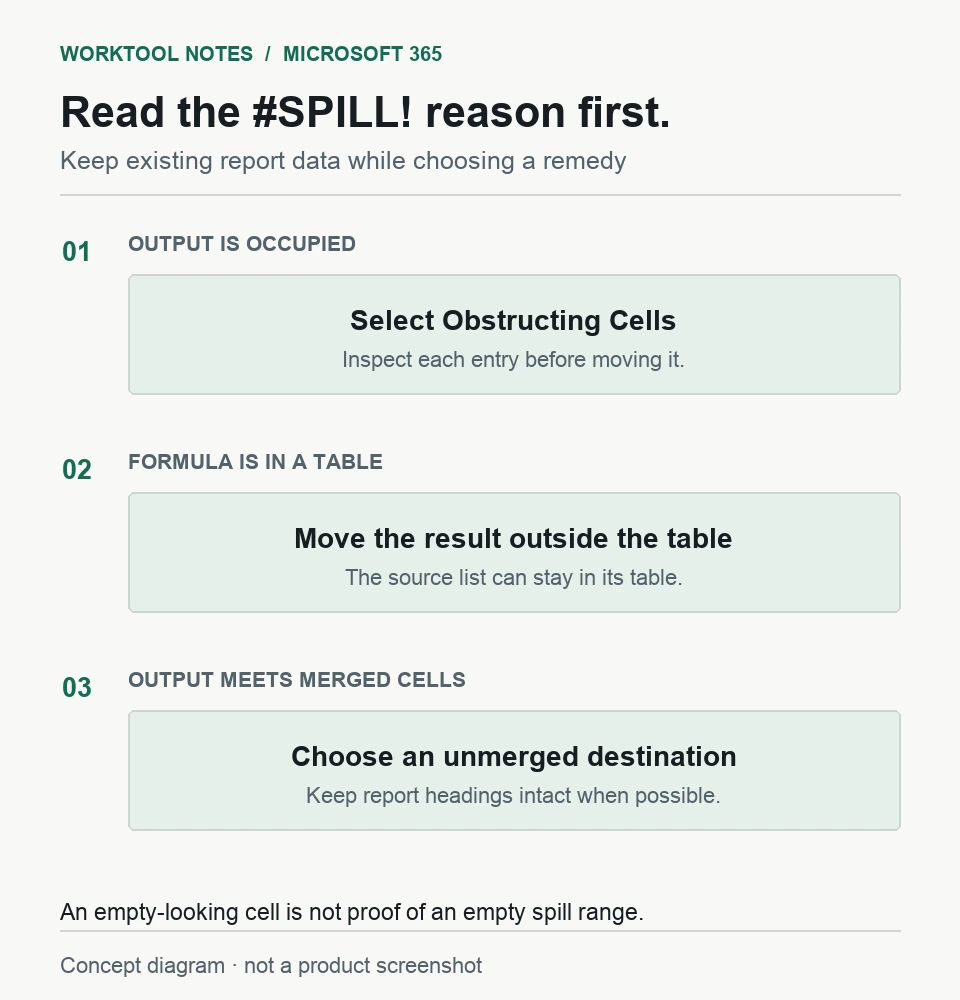
Select the cell showing #SPILL!, inspect the outlined output area, and read its error alert. For an occupied range, Select Obstructing Cells identifies the entries in the way. If the formula is inside an Excel table or its output meets merged cells, clearing ordinary values will not address that cause.
In this guide
Excel for Microsoft 365 on Windows desktop, using spilled dynamic-array formulas such as UNIQUE. Does not cover legacy Ctrl+Shift+Enter arrays, Insider PivotTable spill behavior, or Mac, web, and mobile control paths.
Locate the intended output before clearing anything
Save a workbook copy before moving data or changing the layout. Keep notes, formulas, and totals that already occupy the destination; an apparently inconvenient cell may still belong to the report.
Follow the reason in the error alert
| Reason | First action |
|---|---|
| Spill range isn't blank | Inspect the obstructing cell before moving or deleting its entry |
| Table formula | Put the array formula in ordinary worksheet cells outside the table |
| Spill into merged cells | Choose an unmerged destination, or unmerge only the affected layout |
Microsoft's SPILL error guide documents these separate cases. Moving the formula to an empty, unmerged area outside a table can preserve the existing report while you diagnose its placement. Recheck its references after moving it.
An empty-looking cell can still be the obstruction
Use Select Obstructing Cells, then read the selected cell's formula bar. Do not clear the entire rectangle just because its contents are difficult to see. Move an entry you need to keep to an agreed location, or delete only an entry you have confirmed is disposable.
Suppose a worksheet contains this small source list and a delivery note:
| Cell | Entry |
|---|---|
| A2 | Oak |
| A3 | Pine |
| A4 | Oak |
| A5 | Birch |
| D2 | =UNIQUE($A$2:$A$5) |
| D4 | Delivery note |
The UNIQUE function returns distinct values, so the formula asks for three output cells: D2 through D4. The delivery note occupies the last one. Moving that note elsewhere leaves room for Oak, Pine, and Birch without changing A2:A5. Confirm the actual source range in your workbook; this example is not a formula to paste over your own data.
Keep the source table; move the result outside it
A source list may remain an Excel table. The restriction concerns where the spilled result lives: Microsoft places that result in the grid outside the table. You do not need to convert the source table to an ordinary range just to display a separate list.
After the spill works, edit its formula in the top-left output cell. The other output cells belong to that formula and are not independently editable. Microsoft's spilled-array reference explains both behaviors.
Leave room for the list to grow, rather than placing a new delivery note immediately beneath today's last result.
Keep merged report headings out of the output
If the intended output touches a merged area, using another destination avoids changing the heading. If unmerging is appropriate in your workbook copy, select the affected merged cell and choose Home > Merge & Center arrow > Unmerge Cells. Then inspect the heading's layout and the formula result. See Microsoft's unmerge instructions.
Unmerging does not recover values discarded by an earlier merge. Do not merge the result back over the returned values.
When the alert gives a different reason
The same SPILL guide also covers output beyond the worksheet edge, unstable array size, and memory limits. Emptying more cells is not the remedy for those messages. Keep the exact alert text and the formula, then use the guide's Excel Tech Community support link with an anonymized sample.
If the cell instead shows an unchanged number or literal formula text, follow the separate recalculation and text-format checks. A dropdown missing new choices needs its Data Validation source inspected, rather than a spill-range cleanup.
Sources
Based on official documentation; not independently tested. Sources checked Oct 4, 2026. How we review guides
Something out of date? Let us know.
Related fixes
Excel dropdown does not include new list items
Inspect the Data Validation source before adding the item again. A fixed range, named range, and table-backed list need different updates.
 Microsoft 365
Excel filters leave rows out of the result
Separate a second active filter from an incomplete filter range before changing or deleting worksheet data.
Changing one Word header changes another section
Separate section headers with Link to Previous, and check first-page and odd/even headers before editing the text.