Excel dropdown does not include new list items
Inspect the Data Validation source before adding the item again. A fixed range, named range, and table-backed list need different updates.
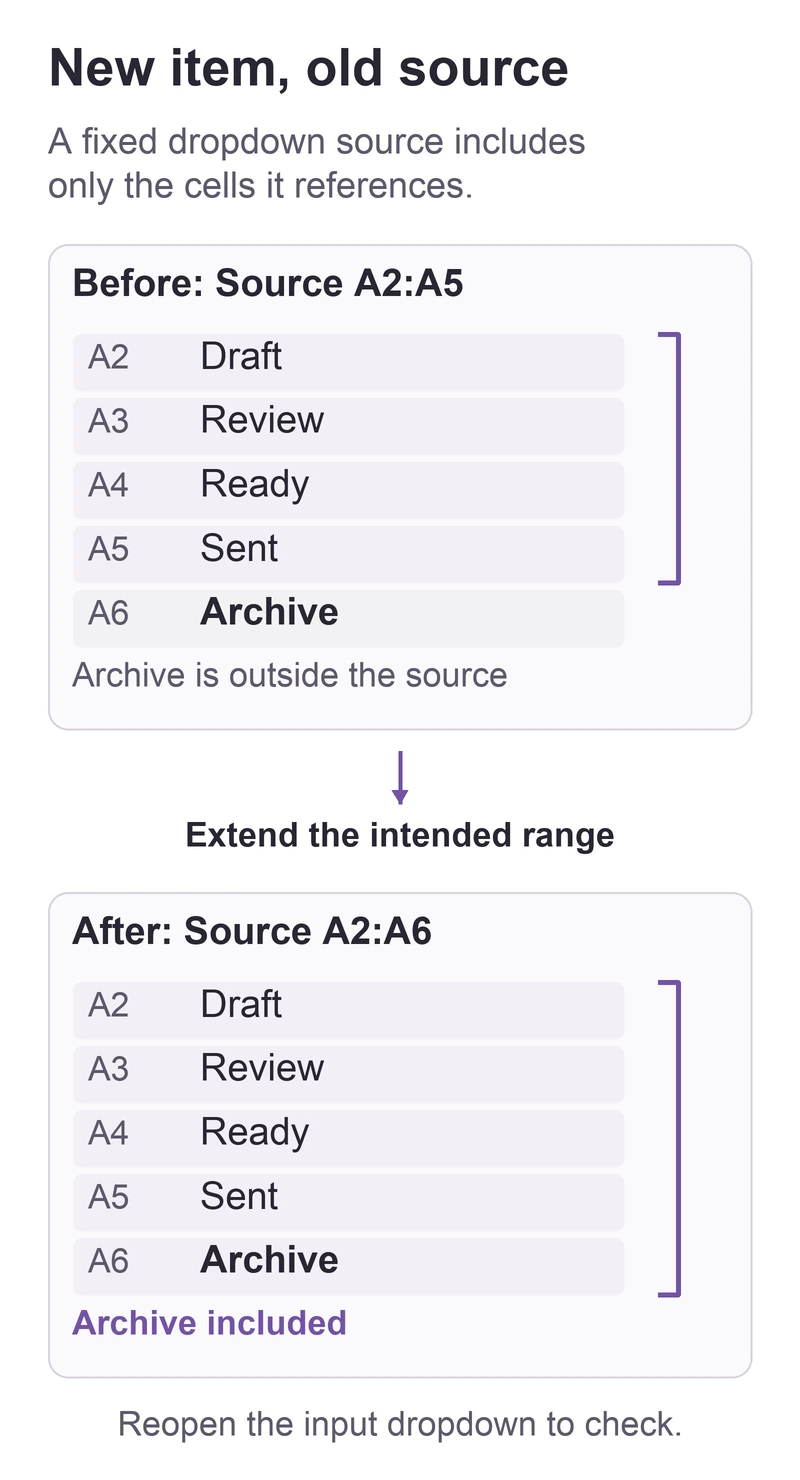
Select a cell with the dropdown and open Data > Data Tools > Data Validation > Settings. Inspect Source before adding the missing choice again. If it refers to =$A$2:$A$5, an item entered in A6 is outside that list.
In this guide
Excel for Microsoft 365 on Windows desktop. Ordinary Data Validation list dropdowns; not AutoFilter, form controls, VBA, or cascading/formula-driven list design. Mac and web controls are outside the exact paths here.
Compare the new item with the list source
Save a workbook copy before changing the rule. Note which input cells should share it; a setting meant for one field may also be used elsewhere.
Identify the source type
| Source | Where to make the change |
|---|---|
A cell range, such as =$A$2:$A$5 | Extend Source to include the intended entries |
A name, such as =ProjectStatus | Inspect that name in Formulas > Name Manager |
| Choices typed directly into Source | Edit those choices in the dialog |
| A list already based on an Excel table | Add the item to the source table |
Microsoft's list-update guide covers these different sources. Do not replace a named or formula-driven source with a guessed rectangle just because the rectangle is easier to understand.
Extend a fixed range
In the workbook copy, select an affected input cell and return to Data Validation > Settings. Click Source and select the full intended list, including the new item. Exclude the heading; it should not become a choice.
For the A2:A5 example, select A2:A6 if A6 is the only added entry. Check the first and last entries before selecting OK, then reopen that input cell's dropdown.
Use Apply these changes to all other cells with the same settings only if all those cells should receive this update. Otherwise, keep the change limited and inspect the other input cells separately.
Update a name or table at its source
For a named list, open Formulas > Name Manager, select its name, and inspect Refers to. Extend an ordinary fixed reference to the intended entries and select the checkmark to commit it. Microsoft's Name Manager guide describes this control. A name may be used beyond this dropdown, so inspect its purpose before editing it. Leave an unfamiliar formula-based definition to the workbook owner.
For a table-backed list, add the new entry at the end of the actual source table. Microsoft's dropdown creation guide explains that associated dropdowns update as their table source changes. Confirm that the new item belongs to that table rather than a separate list with a similar heading.
If the control is missing or disabled
If no arrow appears, check Allow: List and In-cell dropdown in Settings. Finish any cell edit first. A protected worksheet can prevent validation changes; ask its owner for the permitted edit instead of removing protection from a shared workbook without agreement.
Changing a rule does not automatically flag every invalid value already stored in the cells. Microsoft's validation details cover Circle Invalid Data if you need to inspect existing entries. Review those entries separately rather than overwriting them with the new choice.
If the arrow is in a column heading and hides rows, it is a filter. Use the missing filtered-row checks for that problem. For an unresolved validation list, use the support links in Microsoft's update guide with an anonymized sample and the Source expression.
Sources
Based on official documentation; not independently tested. Sources checked Oct 3, 2026. How we review guides
Something out of date? Let us know.
Related fixes
Excel filters leave rows out of the result
Separate a second active filter from an incomplete filter range before changing or deleting worksheet data.
Changing one Word header changes another section
Separate section headers with Link to Previous, and check first-page and odd/even headers before editing the text.
 Microsoft 365
Excel prints a long worksheet too small to read
Fit the columns across a page while letting rows continue onto more pages. Check the print area before shrinking the whole sheet.