Canva cuts off part of a photo inside a frame
Adjust the photo inside its frame, recognize an aspect-ratio mismatch, and keep important subjects visible without stretching the whole design.
If a photo loses a face or an important edge inside a Canva frame, double-click the framed photo and reposition its contents before resizing the whole layout. The frame is a crop boundary. If the full subject cannot fit within that shape, use a different frame or display the image outside it.
In this guide
Canva desktop web editor with an editable design and an image inside a frame. Mobile gestures, print bleed, background-image workflows, and automatic social-media cropping are outside this guide.
Before changing the design
Work on a design copy and keep the original upload. These checks concern a visible crop in Canva's desktop web editor, not a print shop's trimming or a social platform's preview.
Establish where the edge disappeared
Open the original photo outside Canva and compare one recognizable detail, such as a person's hand or the edge of a product. If that detail is missing from the original too, moving the Canva crop cannot reveal it.
| What is missing | Next decision |
|---|---|
| The original contains the detail; the framed version does not | Reposition or reduce any extra zoom within the frame |
| The subject cannot fit while the frame stays filled | Change the frame's proportions or use an unframed image |
| The editor looks right; the destination cuts it off | Compare the downloaded file with that destination |
Use the actual downloaded file for the last comparison. If it retains the intended subject, changing the Canva frame again would address the wrong stage.
Move the contents while keeping the layout
Canva's frame instructions describe editing the media separately from its container:
- Double-click the photo inside the frame.
- Drag the photo to bring the missing face or edge into view.
- If it is zoomed in, adjust the white corner handles to show more of the photo.
- Select Done, then inspect the opposite edge as well.
Watch the frame's outline and nearby text. If the whole frame moves or grows, you are changing the layout rather than the crop inside it; undo that adjustment and re-enter the photo.
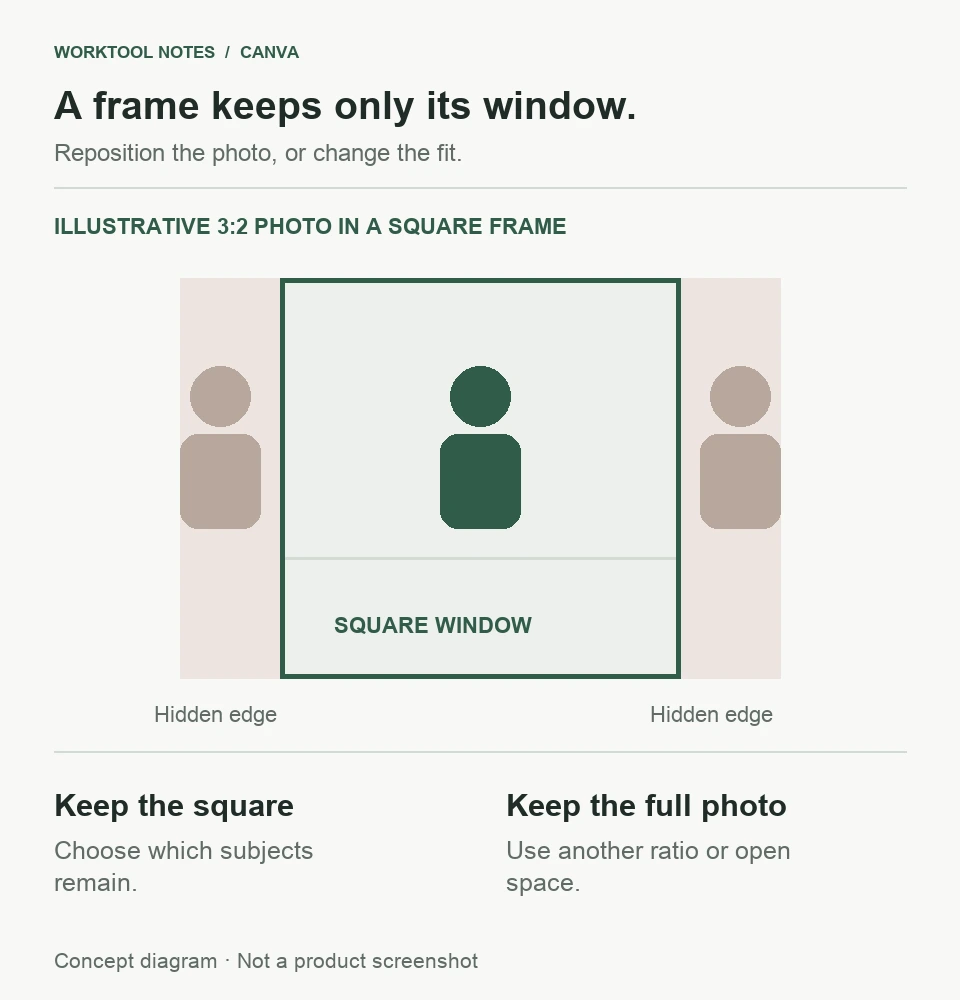
A useful comparison is a group portrait with people near both outer edges. Repositioning may recover one person while cutting off another. Judge the required subjects together before accepting the crop.
When moving the photo cannot solve the fit
A wide photo and a square frame have different proportions. For illustration, a 3000-by-2000 image has a 3:2 ratio. Filling a square without distorting that image requires cropping some width. Moving the crop changes which part remains; it does not turn the whole rectangle into a square.
Choose which requirement can change:
- Keep the square layout: use a composition whose essential subjects fit within the square.
- Keep the full photograph: place it outside the frame and leave space around it where necessary.
- Keep a shaped crop with more width: add a suitable frame through Elements > Frames and inspect its fit with the original photo.
Canva's crop overview distinguishes composition changes from resizing. Increasing the download resolution will not restore an area excluded by the frame.
Keep hidden image data in mind when sharing
Cropping is a visual decision, not a way to remove confidential information. Canva's download reference warns that PDF exports can contain the original, uncropped image. Remove sensitive content from a separate source copy before adding it to a design you will share.
If the documented crop controls do not respond on an editable design, use the Canva Help Center with the browser, design type, and a nonconfidential example. Note whether the problem affects one frame or every photo.
For an object you cannot select, use the overlapping-element checks. For a photo that fits but looks soft, see download sharpness checks.
Sources
Based on official documentation; not independently tested. Sources checked Oct 5, 2026. How we review guides
Something out of date? Let us know.
Related fixes
Canva keeps selecting the wrong element
Use Layers to reach covered text or artwork, then distinguish an overlap from a group or an editing restriction.
Get sharper Canva downloads without enlarging a blurry source
Find whether blur starts in the export size, one source image, or the platform that resizes the download.