After Effects drifts between identical Position keyframes
Separate a curved motion path from easing, then repair an unwanted move during a planned pause without rebuilding the animation.
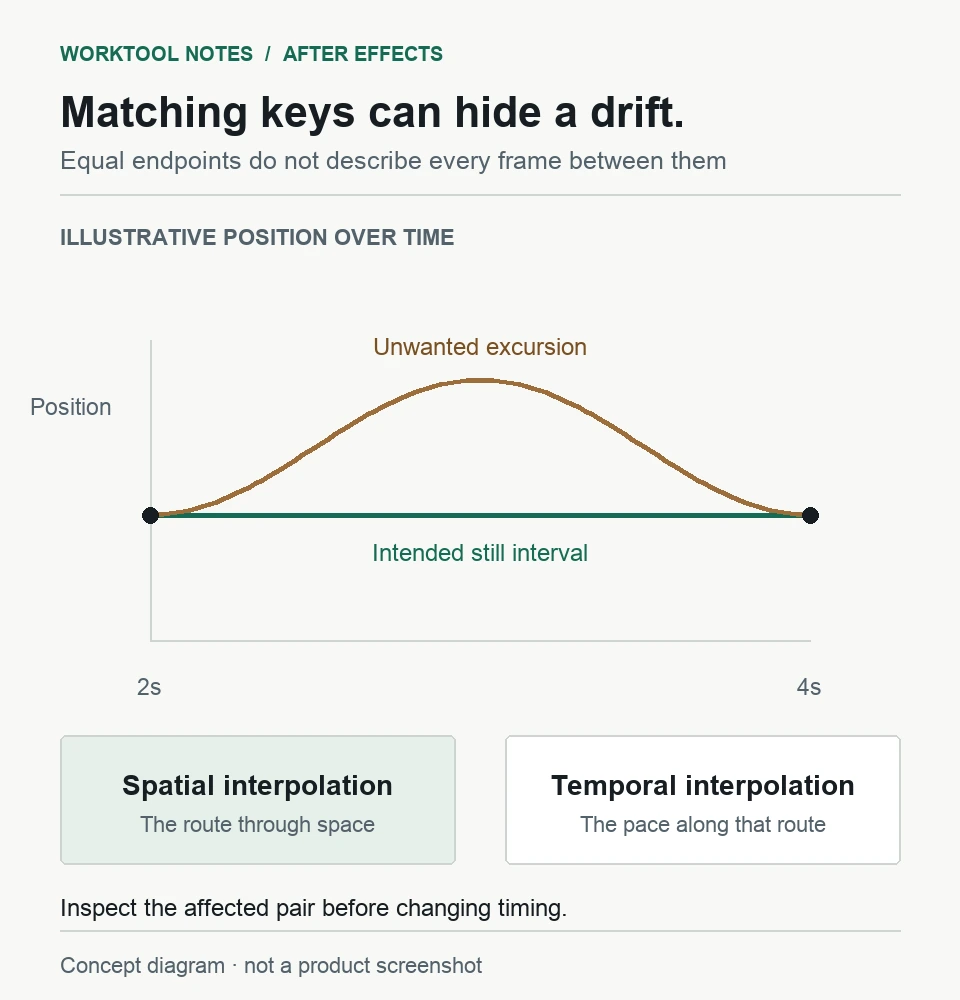
If a layer wanders during a pause even though its two Position keyframes have identical values, inspect Spatial Interpolation. Auto Bezier can create an unwanted excursion between matching positions. Correct the affected pair before changing timing or rebuilding the animation.
In this guide
After Effects desktop on Windows or macOS; ordinary 2D layers with combined Position keyframes. Separated X/Y dimensions, expressions, parent animation, camera movement, and shape-group transforms require different checks. No beta controls used.
Inspect the two ends of the pause
Save a project copy first. A path change can also alter the way the layer enters or leaves the pause, so compare those adjacent moves afterward.
Decide whether the position or the picture is moving
Select the layer in the Timeline and press P to reveal Position. Move the current-time indicator to each keyframe bounding the supposed pause. Compare the complete coordinate values, not just whether the layer looks centered.
For example, a title is meant to pause at the center between these two keys:
| Point in the animation | Intended Position | What to inspect |
|---|---|---|
| Pause begins at 2 seconds | 960, 540 | First bounding keyframe |
| Pause ends at 4 seconds | 960, 540 | Second bounding keyframe |
| Between 2 and 4 seconds | Still 960, 540 | Scrub for an unintended excursion |
If the bounding values differ, the layer has been given a move; decide which location is correct before editing interpolation. If Position stays constant throughout but the picture moves, look for another animated transform, an expression, or a parent. Changing this path will not correct motion elsewhere in the rig.
Straighten only the affected path segment
Adobe describes this back-and-forth behavior in its keyframe interpolation reference.
- Select only the two combined Position keyframes around the unwanted pause.
- Open Animation > Keyframe Interpolation.
- Set Spatial Interpolation to Linear. Leave Temporal Interpolation and Roving at Current Settings for this comparison.
- Confirm the dialog, then scrub between the pair and through the neighboring moves.
Matching positions connected by a linear spatial segment should no longer describe a curved excursion. If the pause is now still but a nearby turn becomes too sharp, undo and refine that turn's Bezier handles deliberately rather than converting every keyframe in the layer.
For a deliberate hard hold, Adobe also documents changing the earlier keyframe to Hold. This is a temporal choice: it keeps that value until the next keyframe and then changes immediately. Use it when a hold-and-jump is the intended animation, not as a blanket substitute for smooth movement.
Keep the route separate from the speed
Spatial interpolation controls the route through the composition. Temporal interpolation controls how the value changes over time. A smooth-looking keyframe icon does not establish that both are right.
If the route is correct but the layer accelerates abruptly, inspect its speed instead. In the Graph Editor, Edit Speed Graph shows the rate of change; Easy Ease changes the approach to and departure from a keyframe. Adobe explains those controls in its speed guide. Apply timing adjustments after the unwanted path excursion is resolved.
Changing Default Spatial Interpolation To Linear in preferences does not repair existing keyframes. For this animation, edit the saved pair itself.
If the layer still moves
Compare the same passage in the project copy with the original, including the entry, pause, and exit. For the support options in Adobe After Effects Help, include the app version, Position values at the two keys, interpolation settings, and whether expressions or parenting are involved. A small sanitized project is more useful than a screenshot of one stationary frame.
If the movement is an unwanted arc during rotation, use the separate anchor-point guide. If an expression displays an error, follow expression-reference checks.
Sources
Based on official documentation; not independently tested. Sources checked Oct 4, 2026. How we review guides
Something out of date? Let us know.
Related fixes
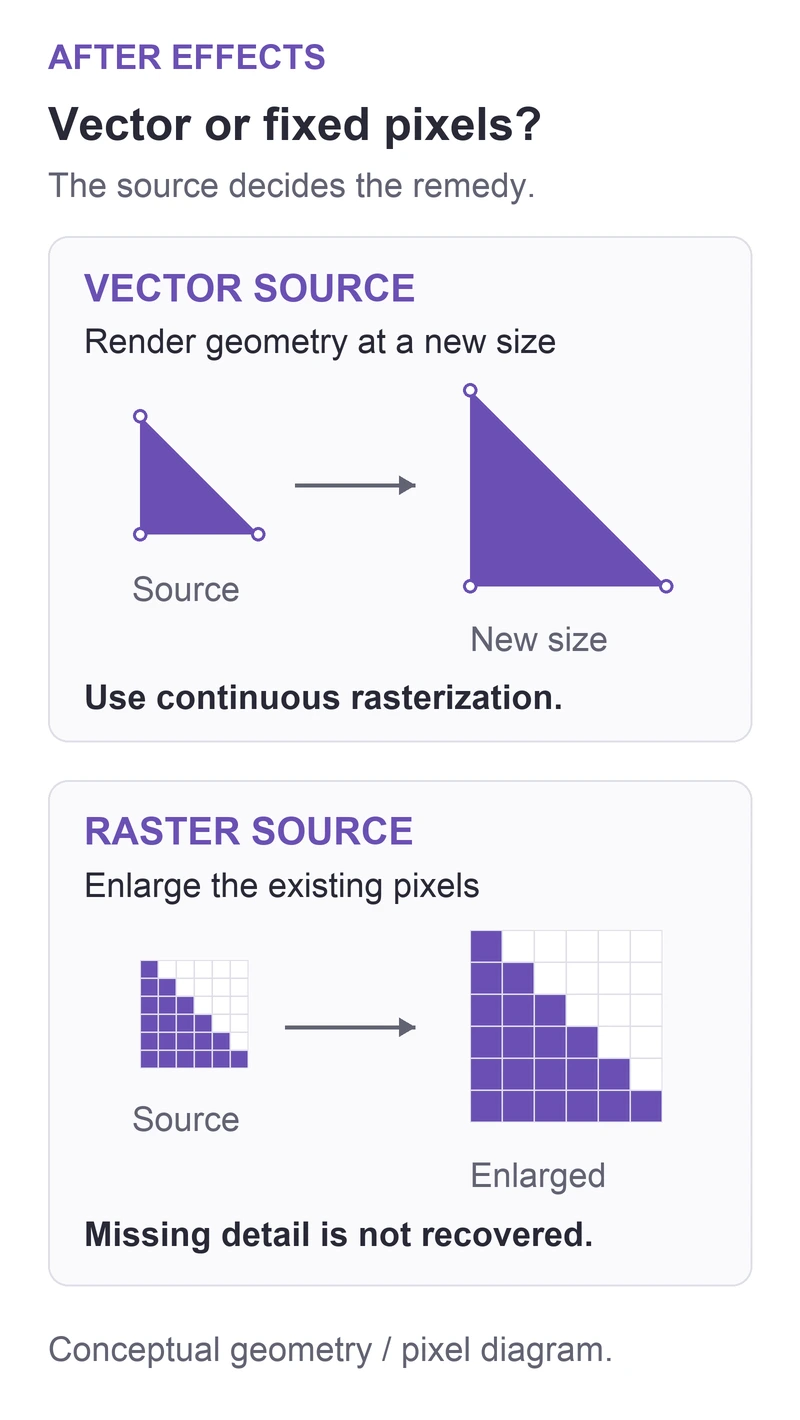
After Effects vector artwork looks soft when enlarged
Check whether the source is vector or raster, enable continuous rasterization on an imported vector layer, and inspect precomposition behavior before changing the design.
 After Effects
After Effects hides the last lines of a text box
Check paragraph-text overflow and enlarge the text box without scaling the lettering or discarding hidden characters.
An After Effects layer rotates around the wrong point
Move the layer anchor to the intended pivot without confusing it with centering the layer in the composition.