Why an OBS camera filter changes other scenes
Separate shared camera properties and filters from each scene’s crop and size, then give one layout its own filter treatment without duplicating the webcam.
If changing a webcam filter in one OBS scene changes it in another, inspect the source name in both scenes. Add Existing and Paste (Reference) reuse the same source, including its properties and filters. Keep that shared camera; use scene transforms for different framing, or a dedicated nested scene for a different filter treatment.
In this guide
OBS Studio desktop scene collections on Windows and macOS using built-in camera, scene, filter, and transform controls. Device-specific properties and third-party plug-ins can differ. This covers different appearances of one shared camera, not a failed capture device.
Separate the source from its placement
Identify which setting is being shared
Open each affected scene and select the camera in Sources. Compare its name, then inspect its Properties and Filters. OBS developer R1CH explains the shared behavior in the reference-versus-duplicate discussion. A reference is another placement of the existing source, not a second independent camera.
Decide where the adjustment belongs before changing it:
| What should differ between scenes? | Use this control | What stays shared? |
|---|---|---|
| Camera position or displayed size | Edit > Transform > Edit Transform on its placement | Capture properties and source filters |
| How much of the picture is visible | Crop in Edit Transform, or drag the edges with Alt on Windows or Option on macOS | The camera's underlying picture |
| A color or mask filter used in one layout | A filter on a dedicated camera scene | The camera capture itself |
| Device or capture resolution for every appearance | The shared camera's Properties | All references use that change |
The Sources Guide documents transforms and cropping. A Crop/Pad filter belongs to the source; a crop made with the scene transform belongs to that placement. They can look similar while having different reach.
If resizing one appearance seems to resize another, check whether you are editing inside a shared nested scene. Its contents are reused wherever that scene appears. Select the nested scene's placement in the main layout to adjust that layout's size instead.
Give one camera treatment its own scene
For a different color or mask treatment, build a small scene containing only the camera. This separates the treatment from the device:
- Create a scene with a distinct name, such as Camera - treated.
- In that scene, use Sources > + > Video Capture Device > Add Existing and select the original camera. Do not choose Create New for the same webcam.
- Arrange the camera in this new scene. Apply the required visual filter to Camera - treated itself, using the Filters control in the Scenes dock. Select the scene, not the camera entry in Sources.
- In the main layout that needs this treatment, add Sources > + > Scene and select Camera - treated. Position and crop that scene's placement as needed.
- While still off-air, hide the main layout's old direct camera entry with its eye control. Keep it available until the replacement looks right; showing both can leave an untreated camera behind the treated one.
OBS's nested-scene tutorial demonstrates adding a filter to a scene and using that scene as a source. The same-camera filter discussion describes using separate camera scenes for separate treatments.
Keep any filter intended for every appearance on the shared camera. If the unwanted treatment is already on the camera, note its values, recreate it on the dedicated scene, and disable that particular source filter while comparing. Leaving both enabled can apply the treatment twice. Check every scene that previously relied on it before making that change permanent.
Confirm that the separation worked
Compare the plain layout with the treated layout, then record a short scene switch. The plain view should retain its intended appearance; the treated view should show only the new treatment. Check crop edges as well as color. If both still change, reopen Filters and check whether you selected the camera or the dedicated scene.
Paste (Duplicate) is not a universal escape route. OBS's source API reference explains that some sources cannot be fully duplicated; video devices and capture sources can also fail or create resource conflicts. Keep one capture of a webcam rather than opening it repeatedly.
For a persistent mismatch, use the OBS Help Portal with your OBS version, source type, affected setting, and a redacted sketch of which scene contains which source. If the camera is simply hidden or off-screen, use the visibility and transform checks. Browser overlays that restart during scene switches need the Browser Source lifecycle checks.
Sources
Based on official documentation; not independently tested. Sources checked Oct 4, 2026. How we review guides
Something out of date? Let us know.
Related fixes
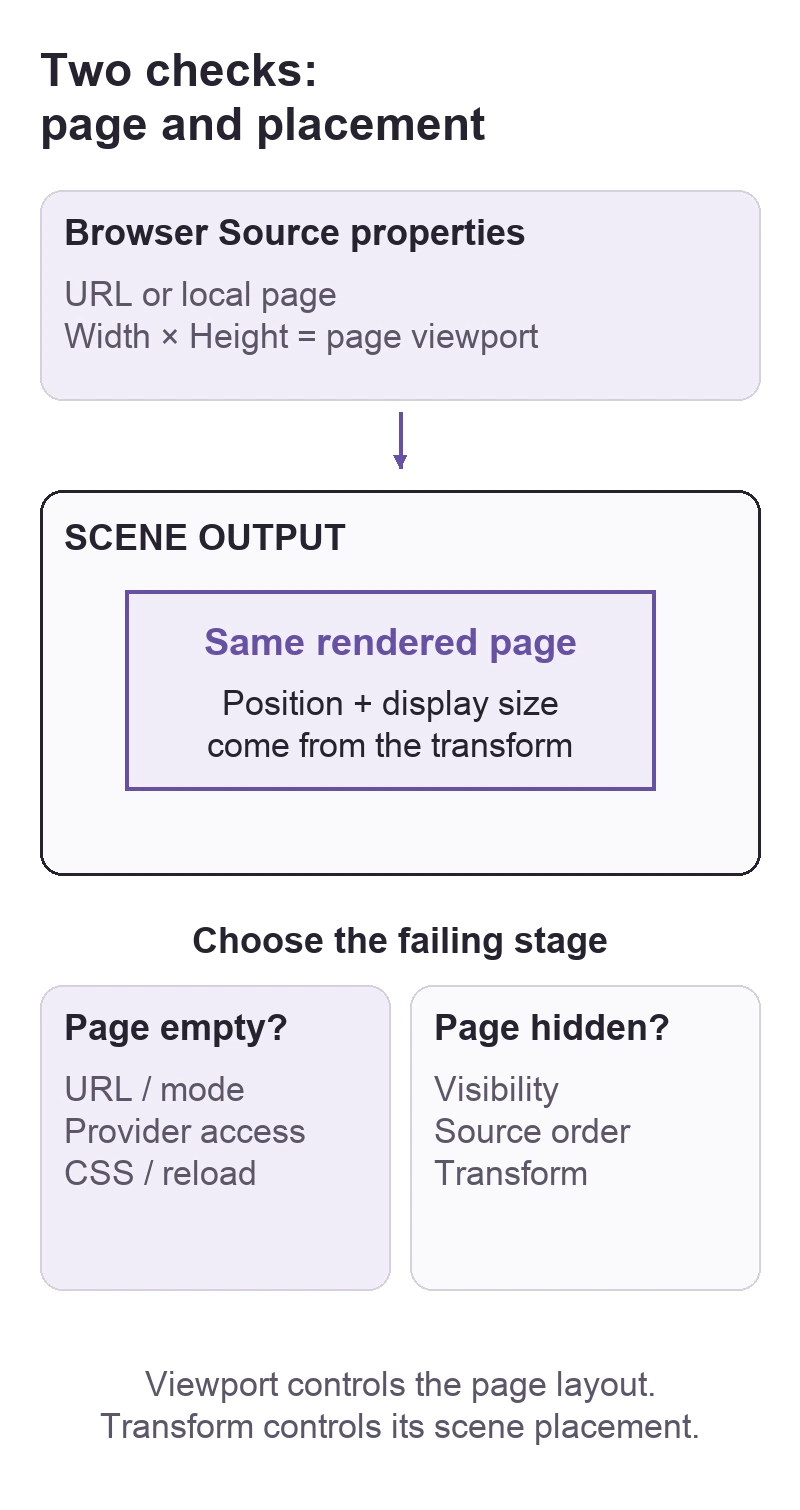
OBS Browser Source is blank or stops updating
Separate an OBS scene-placement problem from a Browser Source page-loading problem, then check its URL, viewport, CSS, and refresh behavior.
 OBS Studio
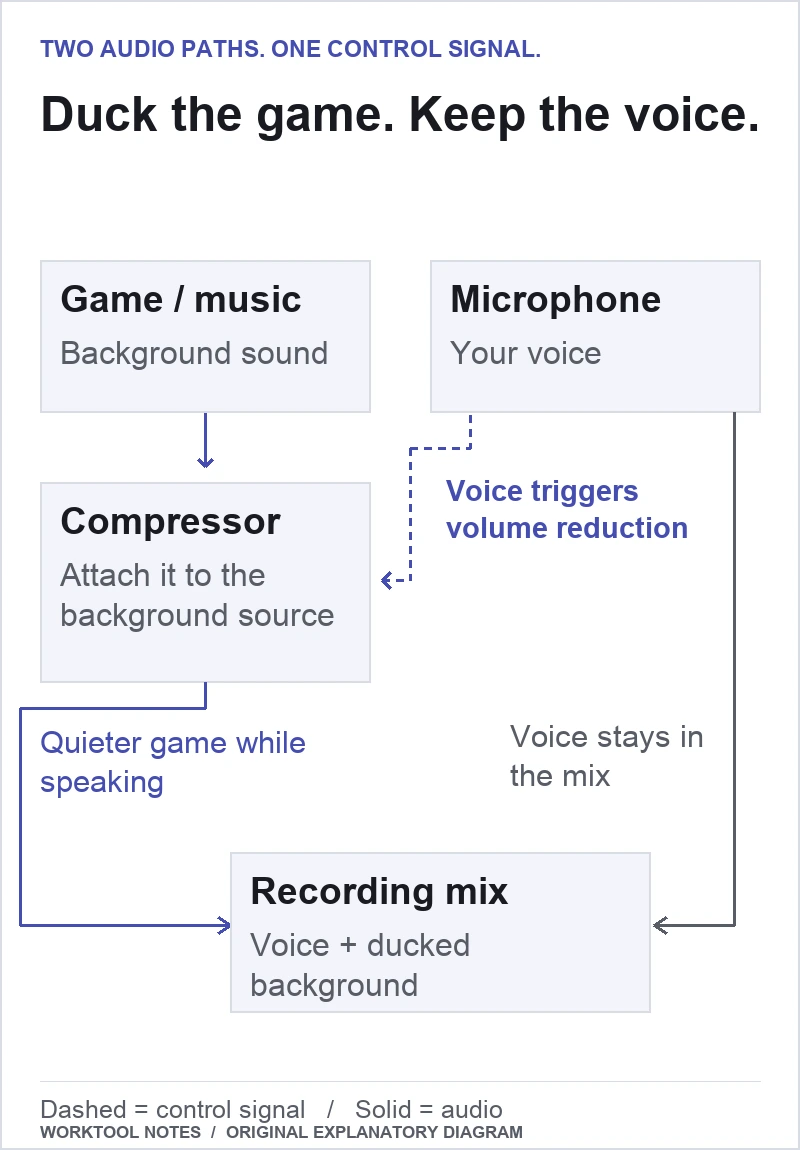
Lower game audio when you speak in OBS
Put a sidechain compressor on the game or music source, then use your microphone to trigger the volume reduction.
 OBS Studio
Record one app in OBS without capturing the rest of Windows
Capture a chosen application, remove the broad desktop-audio path, and test that unwanted sounds stay out of the recording.