CapCut desktop cannot reverse a video clip
Check clip selection and completed processing, compare an untreated clip, and preserve the original edit before using a rendered copy to isolate a Reverse failure.
Select the video clip on the desktop timeline, choose Reverse in its editing toolbar, and let processing finish before judging playback. If Reverse fails or the result still runs forward, compare a plain copy of that clip before removing effects from the finished edit.
In this guide
CapCut Desktop on Windows or macOS. Covers the Reverse operation on a video clip, not mobile/web button placement, backward preview scrubbing, template compatibility, or guaranteed support for every source codec.
Select the timeline clip and wait for processing
Keep the original project and media. Make a separate working copy before changing speed, keyframes, or effects: those changes can alter timing and composition.
Judge the motion rather than the thumbnail
Choose a shot with an unmistakable action, such as an object being placed on a table. In the reversed result, it should move away from the table. A still thumbnail cannot establish which direction the clip plays.
CapCut's desktop reverse walkthrough starts with an imported video placed on the timeline, followed by the Reverse operation and processing. A media-library selection is not the same as selecting the clip you intend to change.
Preview the processed result from its beginning. If the editor stutters but the direction is correct, that is a different symptom; use the preview-versus-export comparison.
Compare the same source without added processing
CapCut's Reverse troubleshooting lists resource pressure, existing speed or complex effects, and source-format compatibility as possible desktop factors. It advises removing speed adjustments or keyframe effects before retrying.
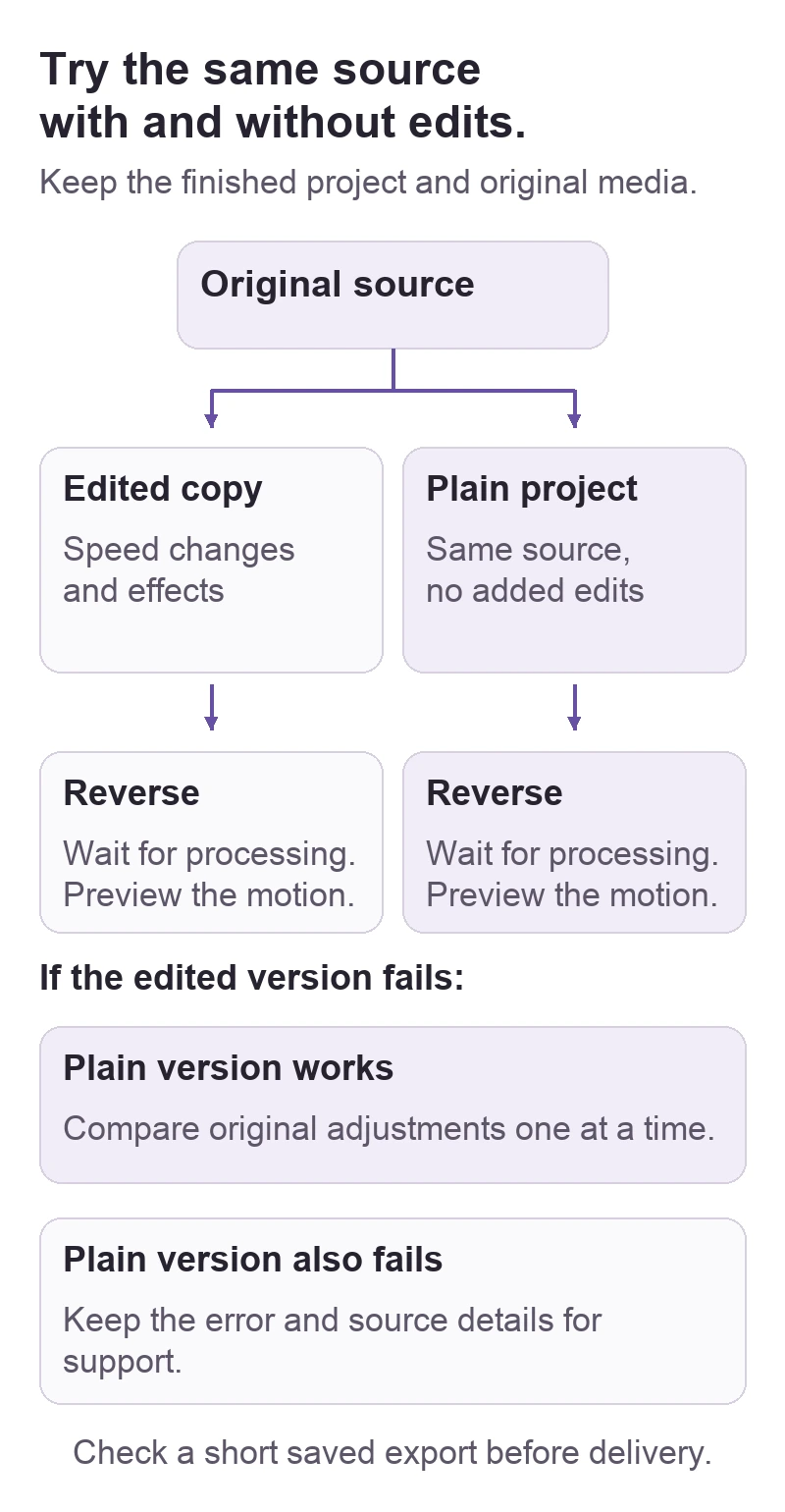
Instead of stripping the only finished project, create a small separate project with the same source video. Put it on the timeline without the original speed changes or effects, select it, and try Reverse. Wait for completion and inspect the recognizable action.
| What happens | Next decision |
|---|---|
| Plain source reverses; edited version fails | Compare speed, keyframes, and effects in the working copy. |
| Both attempts fail | Keep the error and source details for support; the edit alone is not established as the cause. |
| Processing completes and the preview reverses | Export a short sample and inspect the saved video. |
In the working copy, change one affected adjustment at a time and repeat the same passage. A successful untreated clip shows that this source can reverse in that comparison; it does not identify which original adjustment caused the failure.
Use a rendered copy only as a separate fallback
If the plain-clip comparison does not resolve it, CapCut also suggests exporting the clip and importing that result before reversing. Save the intermediate video under a new filename, keeping the original source and editable project.
A rendered copy combines the visible edit into video; it cannot retain the individual adjustments as separately editable components. It can also introduce another encoding stage. Check its image quality and duration before deciding whether it is an acceptable workaround. If the export itself fails, follow the CapCut export-failure guide.
Finally, play the newly exported reversed sample outside CapCut. Check the beginning, end, direction of movement, and audio before inserting it into the delivery edit. For a persistent Reverse error, use the support link in CapCut's official troubleshooting page with your desktop and OS versions, file type, exact error, and whether the untreated comparison also fails.
Sources
Based on official documentation; not independently tested. Sources checked Oct 3, 2026. How we review guides
Something out of date? Let us know.
Related fixes
CapCut desktop does not show the keyframe controls
Select an editable timeline clip and inspect the parameter panel before replacing a template or rebuilding the project.
Fit a vertical CapCut video into a landscape frame without cutting it off
Keep the full portrait image inside a 16:9 project, fill the unused sides, and distinguish that layout from cropping to fill the screen.
CapCut playback is choppy in the editor
Compare a short export with the same timeline passage before changing clip speed or lowering the delivery quality.